Customising columns, PDFs and exports
Available on: Pro Plus.
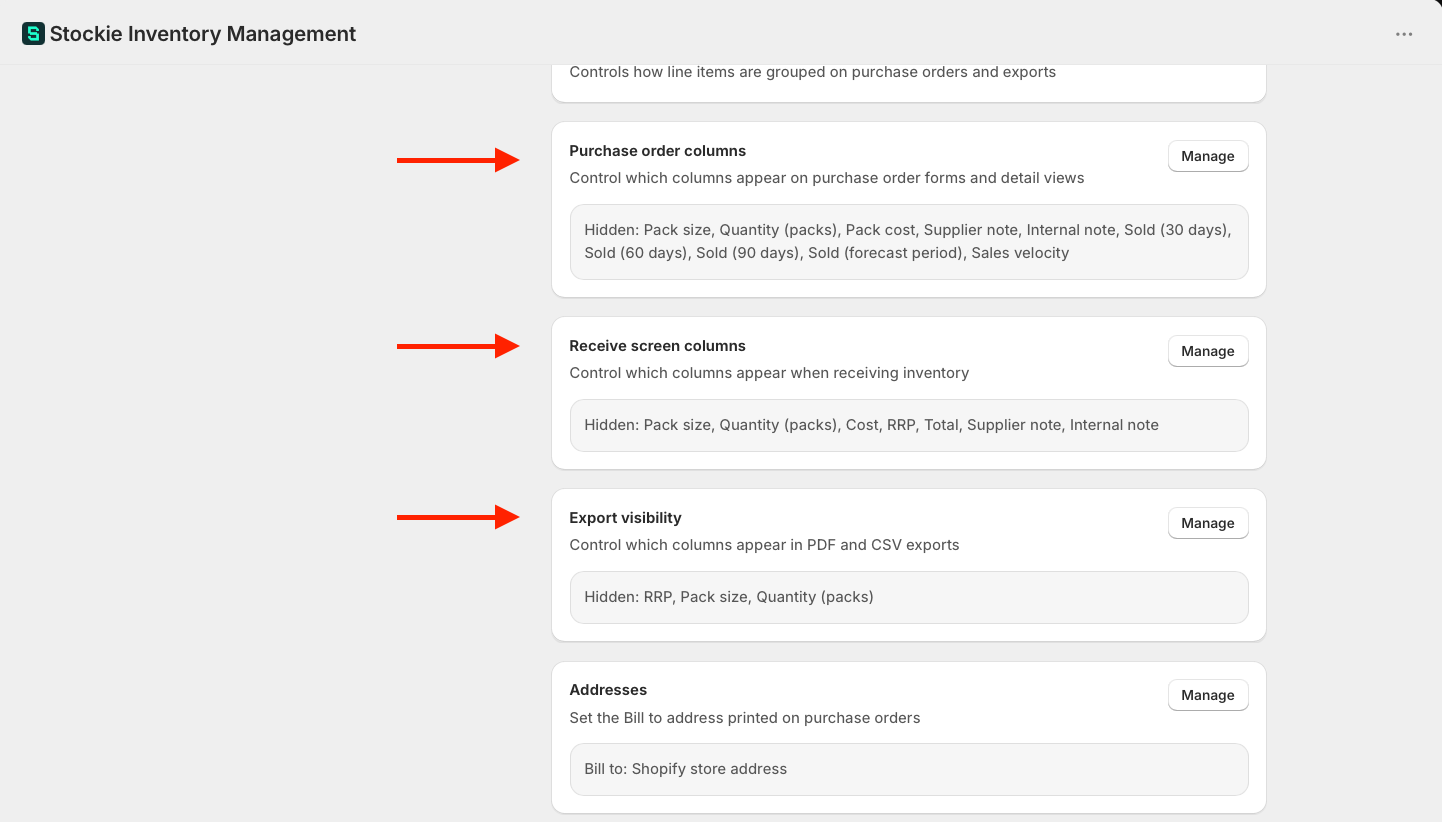
What appears on a purchase order is controlled in three separate places, depending on where you want the change to show.
Three controls, three surfaces
These are independent. Changing what you see on screen does not change what your supplier receives, and turning a feature off does not remove its column.
Under Settings → Purchase orders :
- Purchase order columns - the columns on the purchase order form and detail view
- Receive screen columns - the columns on the receive screen
- Export visibility - what appears in the PDF and CSV exports
Click Manage on any of them to choose its columns. You can also change the first two from Edit columns on the line items table of a purchase order or the receive screen, which updates the same store-wide setting.
If a column will not go away, you have almost certainly changed one of the other two.
Line amounts: Subtotal and Total
Each line can show two money columns, and you can have either, both or neither:
- Subtotal (excl. tax) - quantity × unit cost, before tax. Off by default
- Total - quantity × unit cost, including tax. On by default on the purchase order and in exports, off by default on the receive screen
Both are offered in all three controls, so you can, for example, show pre-tax subtotals on screen while your supplier sees tax-inclusive totals. On the receive screen the subtotal is based on the ordered quantity.
In exports, Subtotal and Total only print when Pricing is on. The column headers are Subtotal and Total, followed by the order's currency.
Pack quantities on supplier documents
If your lines use pack sizes, PDF and CSV exports can show quantities the way your supplier picks them: QTY, UOM and UNITS side by side, next to the supplier's product codes.
- QTY - how many to supply, counted in the unit beside it
- UOM - Pack of 24 on a pack line, Each on a single-item line
- UNITS - the total number of individual items
So 48 units in packs of 24 reads QTY 2, UOM Pack of 24, UNITS 48. A quantity that is not a whole number of packs prints as a fraction of one, exact to the units ordered, and the Send to supplier window lists those lines before you send.
A note above the table explains the three columns, and on a purchase order that shows pricing it adds COST is per individual item. The cost column keeps its usual COST heading. The summary block gains a Packs row, and an emailed line list carries the unit count as well.
This layout replaces the Pack size and Quantity (packs) export columns rather than sitting beside them, so those two checkboxes are not offered under Export visibility while it is in use. Orders with no pack line look exactly as before, and supplier returns use the same layout with wording for a return.
Support switches it on per store rather than it being a setting in the app, so get in touch if you would like it on your exports.
When a PDF has a lot of columns
A purchase order with many columns prints in landscape, and if the table is still wider than the page, product names and codes wrap onto more lines so nothing runs off the edge. Quantity and money columns are never squeezed, so figures stay readable.
Past a certain point there is no width left to give, and the download stops with This PDF is too wide to fit on the page. Hide some export columns and try again. Untick a few columns under Export visibility and the PDF will fit.
Sending a copy without costs
To give your team or a warehouse a copy of an order without financials, untick Pricing under export visibility, download the PDF, then turn it back on. That removes the unit cost, the line amounts and the order cost summary together.
It is a store-wide setting rather than a per-download choice, so remember to switch it back.
Ordering and grouping line items
Also under Settings → Purchase orders :
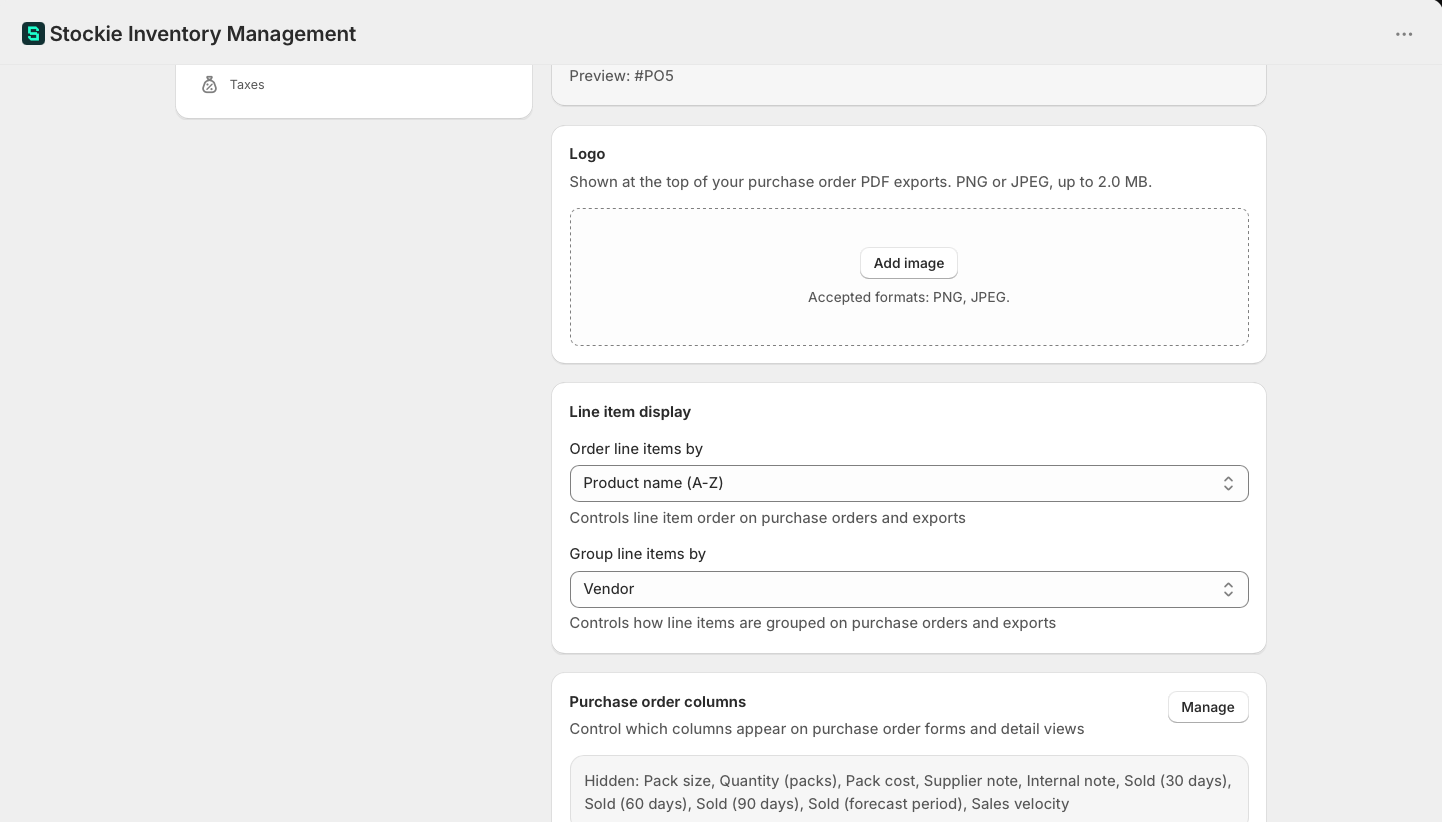
- Order line items by - Product name (A-Z), SKU (A-Z), new items at top, or new items at bottom
- Group line items by - group the lines, for example by vendor or category
Both apply to the purchase order screen and your exports, so a PDF matches what you see.
Your logo on the PDF
Upload a logo under Settings → Purchase orders to have it appear at the top of PDF exports. PNG or JPEG.
Languages on the PDF
Purchase order and supplier return PDFs pick a font to match the characters in them, automatically and with nothing to set. Latin, Greek and Cyrillic text prints in Noto Sans, and Chinese, Japanese and Korean characters print in Noto Sans CJK, so product names, notes and addresses in those scripts come out properly rather than as blanks or boxes.
Your store details
The address and business name on a purchase order come from your Shopify store settings, not from Stockie. To change them, update them in Shopify and they flow through to new orders.