Bulk thresholds via CSV
Available on: Advanced and above.
Setting thresholds one variant at a time stops being practical at a few hundred SKUs. Export them to a CSV, edit in a spreadsheet, and import the file back.
The export is also useful on its own: it is a complete list of every product in a notification with its current threshold, which is the fastest way to audit what you have set.
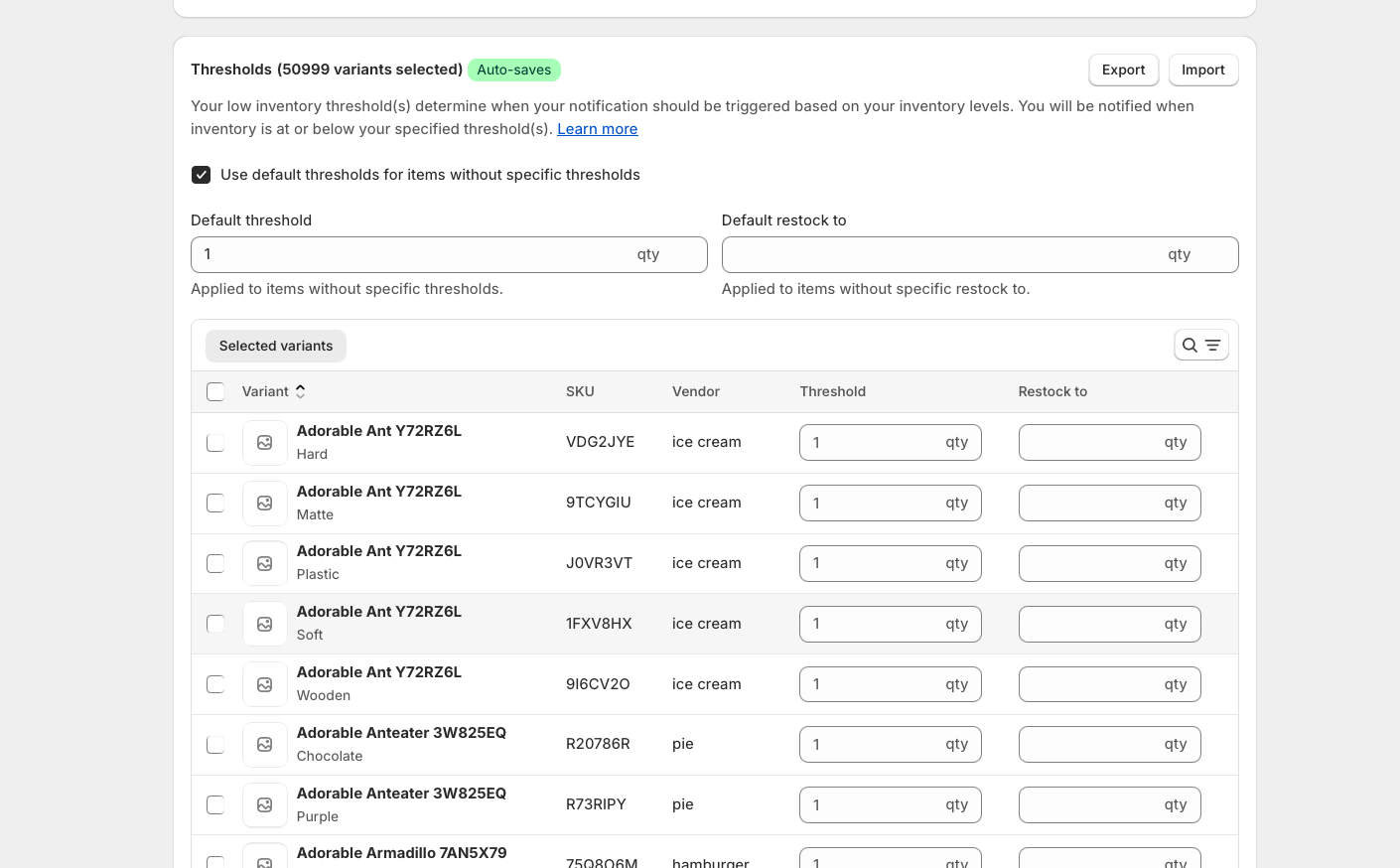
Both live at Notifications → [notification] → Manage products and thresholds .
Always export first
The export gives you a file already populated with the right products and the right identifiers. Building one by hand means matching identifiers yourself, and a row that does not match is a row that does not import.
- Open the notification and go to Manage products and thresholds.
- Export the thresholds. The file is emailed to you when it is ready.
- Edit the THRESHOLD and RESTOCK TO columns in a spreadsheet.
- Import the file back.
What is in the file
The columns depend on whether the notification sets thresholds per variant or per product.
Per variant:
PRODUCT ID , PRODUCT TITLE , VARIANT ID , VARIANT TITLE , SKU , VENDOR , STATUS , TRACKS INVENTORY , THRESHOLD , RESTOCK TO
Per product:
PRODUCT ID , PRODUCT TITLE , VENDOR , STATUS , TRACKS INVENTORY , VARIANT COUNT , THRESHOLD , RESTOCK TO
Only THRESHOLD and RESTOCK TO are editable. Everything else identifies the row or gives you context to decide with - vendor and status are there so you can sort and filter sensibly in a spreadsheet before deciding what to set.
An empty row removes a threshold, it does not skip it. If both THRESHOLD and RESTOCK TO are blank when you import, Stockie takes that as an instruction to clear what that item had. To leave something alone, delete its row from the file before importing.
That is the one thing to get right about this file. Everything else is recoverable by importing again; a row you meant to skip and left blank has had its threshold removed.
Editing the file
Sort by vendor, status or SKU and set thresholds in blocks rather than row by row. A spreadsheet fill is the whole point of the exercise.
Two things to leave alone:
- Do not edit the ID columns. They are how each row is matched back. A changed or missing ID means the row is skipped.
- Do not delete the header row, and do not rename the columns.
Delete the rows you are not changing. A row that is not in the file is left exactly as it was, which is what most people mean when they clear a cell. It is also the safest way to work: export the lot, keep the rows you are setting, delete the rest, import.
Using the export as an audit
If you only want to know what your thresholds currently are, export and stop there.
You get every product in the notification with its threshold and restock to in one file, which answers "what have we actually set" far faster than paging through the table.