Configuring products and thresholds (Classic Mode)
Once you’ve created a notification, you can choose which products it monitors and set your low stock thresholds.
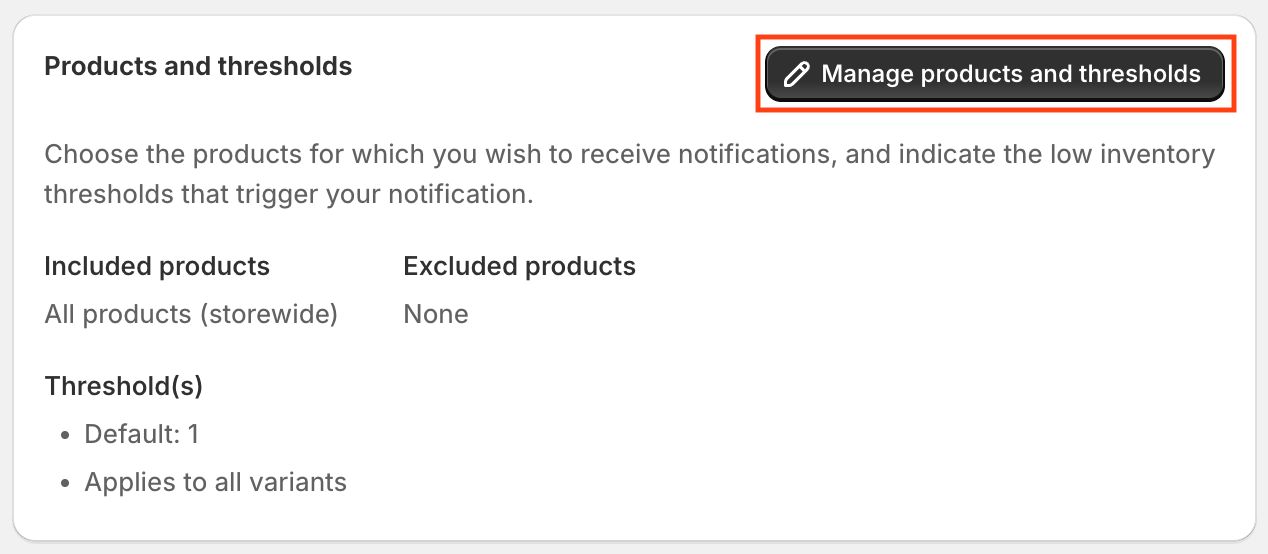
This page is accessed by clicking Manage products and thresholds when viewing a notification.
Threshold settings
The Threshold settings section controls how Stockie determines when a product is considered low in stock.

Thresholds compared with
Choose what Stockie compares your threshold against:
-
Variant inventory (default) - Compares each product variant individually.
(For example, “Black Tee - Medium” triggers separately from “Black Tee - Large.”)
-
Product inventory - Compares the total inventory of all variants combined for that product. Available on Advanced and above.
(Useful for products with shared stock or interchangeable variants.)
💡 Tip: Most merchants use variant inventory, especially for clothing, colors, or sizes that restock separately.
Include incoming inventory
Turn on Include incoming inventory if you want Stockie to count incoming quantities from purchase orders or transfers alongside your available stock.
- When turned on, incoming quantities are added to available inventory before the comparison, so an item alerts only if available plus incoming is still at or below its threshold.
- When turned off, alerts are based only on current available inventory.
💡 Tip: This helps avoid alerts for products that already have enough stock on its way from suppliers.
Including and excluding products
Stockie gives you full control over which products are monitored in each notification.
Include in this notification
Choose what to include:
- All products (storewide) - Monitor every product in your store.
- Specific products - Select individual products or variants.
- Specific collections - Choose one or more Shopify collections. Available on Basic and above.
- Specific conditions - Create custom rules (e.g., vendor, tag, or product type). Available on Advanced and above.
Optional: turn on Include draft and archived products to also watch products whose Shopify status is Draft or Archived.
Exclude from this notification
Fine-tune your selection further:
- None - No exclusions.
- Specific products - Manually exclude individual items.
- Specific collections - Exclude entire Shopify collections.
- Specific conditions - Use filters to exclude based on vendor, tags, or other attributes.
💡 Example: You might include all products storewide but exclude a collection called Discontinued.
Setting thresholds
Thresholds determine when Stockie considers a product low in stock and triggers your notification.
📘 What is a threshold? A threshold is the stock quantity that triggers a low stock alert. For example, if the threshold is set to “5,” you’ll be notified when inventory drops to 5 units or fewer. Learn more about thresholds →

Default thresholds
At the top of the card, you can set a default threshold and default restock to value for any items that don’t have specific settings.
- Default threshold - The stock level that triggers an alert if no item threshold is defined.
- Default restock to - The target stock level you plan to replenish to. (Used for calculating reorder quantities.) Available on Basic and above.
💡 Tip: This is useful if most of your products use the same threshold.
Per-product or per-variant thresholds
Below the defaults, you’ll see a table listing the selected variants, or the selected products if thresholds are compared with product inventory.
For each item, you can enter:
- Threshold - The quantity that triggers an alert.
- Restock to - Your desired replenishment quantity.
Changes save automatically as you type, so there’s no need to click “Save.”
Use default thresholds for items without specific thresholds decides what happens to items you leave blank. With it ticked, they use the default threshold. With it unticked, items without a threshold of their own are not included in the notification.
Setting thresholds on individual items is available on Advanced and above. On Free and Basic, the table shows Unlock the threshold editor, and the default threshold applies to everything the notification watches.
On Free and Basic, Use default thresholds for items without specific thresholds needs to stay ticked. If a notification still has it unticked, for example one kept from an earlier subscription on a higher plan, the checkbox shows that it is required on your current plan. Ticking it and saving lets you activate the notification again, and any item thresholds you saved earlier are kept. Until then, Set as active on the Notifications list shows a message beginning Cannot activate with the notification's name.
Bulk import and export
Managing a large catalog? Use the Export and Import buttons at the top of the card to make bulk updates in a CSV file. Available on Advanced and above.
- Click Export to download your current thresholds.
- Edit thresholds and restock values in Excel or Google Sheets.
- Click Import to upload your changes.