Receiving inventory on a purchase order
Available on: Pro Plus.
Receiving records what actually turned up against a purchase order, and adds the accepted units to your Shopify stock. You can receive in as many batches as the delivery arrives in.
Receive a delivery
- Open the purchase order and click Receive inventory. That opens the receive screen, titled Receive items for followed by the order's number. The order's status sits beside the title, and the supplier and receive location are named underneath, so you can check you are counting against the right order.
- Enter what arrived against each line.
- Save the receipt.
Receive inventory appears once an order is marked Ordered. A draft has nothing to receive against yet.
Accepted units are added to your available stock at the purchase order's receive location. The progress bar tracks Accepted, Rejected and Unreceived so you can see what is still outstanding, and flags anything over-received.
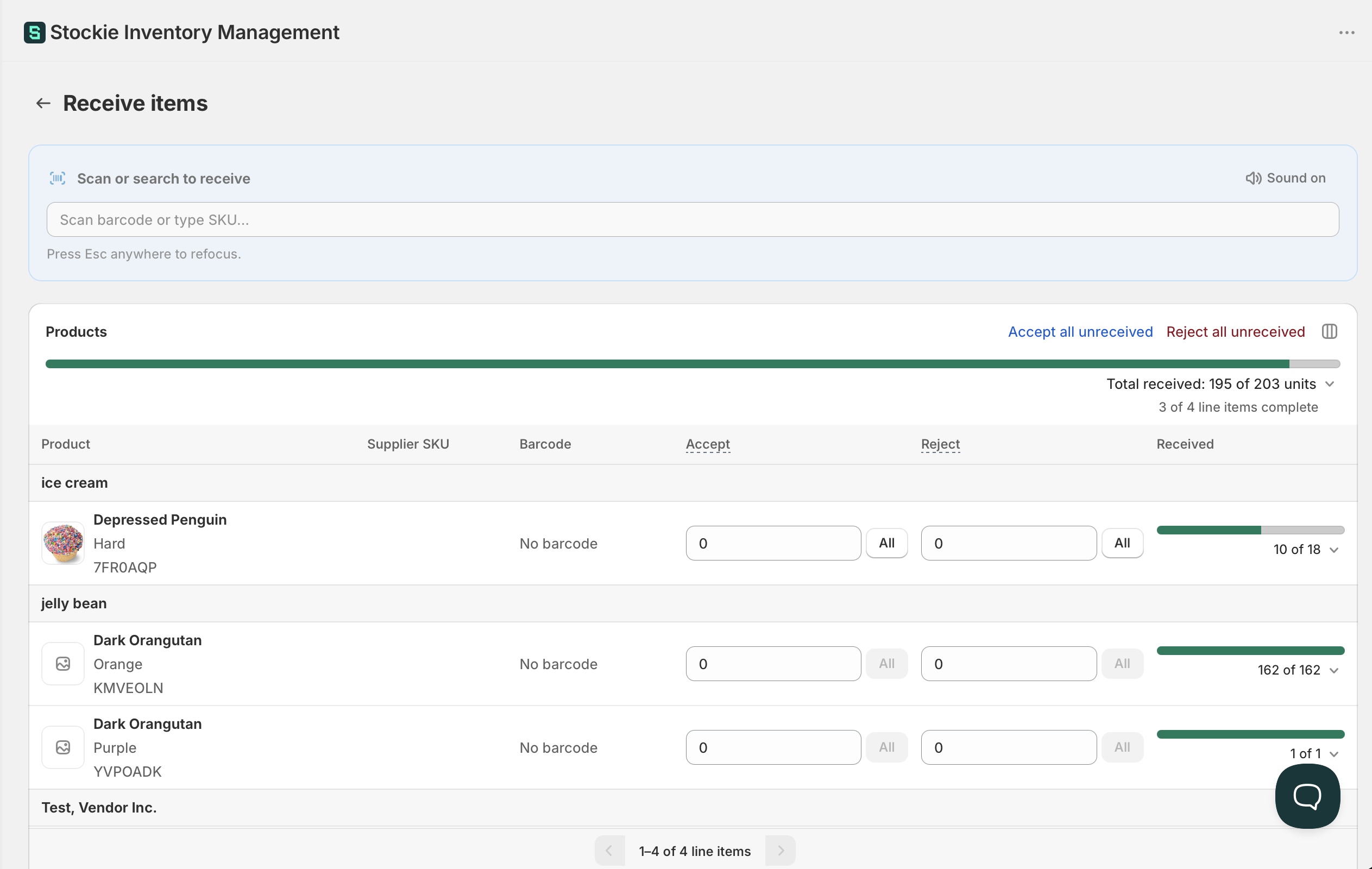
Accept and Reject are different columns
Accept adds stock. Reject does not. The two columns sit next to each other, so it is easy to type a quantity into the wrong one - and rejected units are recorded against the order but never added to your available stock.
Use Reject for units that arrived damaged, short, or wrong. Use Accept for everything you are keeping. If your stock did not go up after receiving, entering units under Reject by mistake is the first thing to check.
Both are reversible - see below.
Receive in batches
A delivery that arrives in parts does not need anything special. Receive what turned up, save, and come back when the rest arrives. The purchase order stays Partially received and the progress climbs each time.
It moves to Received once every line has been fully received, with its accepted and rejected units together covering what was ordered on that line. Extra units on one line do not make up for a shortfall on another, so an order with one over-delivered line and one short line stays Partially received until the short line arrives.
Each save creates a receipt. Receipts are listed on the receive screen, and in a Receipts card on the purchase order itself, so you can see the delivery history at a glance.
Receiving more than you ordered
You can, and Stockie will not stop you. Suppliers over-ship, and the count on your shelf is the one that matters.
It does check first. Before saving, Confirm over-received units lists the lines that now hold more than was ordered, with the received and ordered figures side by side, so you can continue or go back and fix a typo.
A much larger overshoot gets a sharper warning, Confirm large receive quantities, which asks whether a barcode was accidentally scanned into the Accept field. That is usually exactly what has happened.
Over-received units stay visible afterwards, on the progress bar and on your purchase order list, where you can also filter for orders that have them.
Checking a delivery against the invoice
Alongside the unit counts, Stockie shows what a delivery is worth, so you can check it against your supplier's invoice as you go.
On the receive screen:
- Under the progress bar, Total received shows the units and value received so far, including anything you have typed or scanned but not yet saved
- While you have unsaved quantities, This receipt shows the units and value of just the delivery you are entering, ready to compare with the packing slip or invoice
- Each receipt in the Receipts card shows its own value
- Opening the received quantity on a line shows that line's Received value

On the purchase order, the Receipts card lists the most recent receipts with their date, units and value, and you can expand it to see them all. Beneath the list it totals Received (excl. tax), Tax and Received total, how many of the ordered units have arrived, and Remaining (excl. tax) for what is still outstanding. The card appears once something has been received.
A few things to know about how the value is worked out:
- Rejected units are included, because the supplier shipped and billed them. Where an order has rejections, the Receipts card shows how much of the total they account for, which is the figure to raise with your supplier for a credit
- It uses each line's current unit cost, so if you correct a cost to match the invoice, the value follows
- It covers the goods only. Shipping and cost adjustments are left out
- It is shown in the purchase order's currency
You can also add a Received value column to your purchase order list.

Scanning
Rather than typing quantities, you can scan items in using the Scan or search to receive field at the top of the screen. Each scan adds one to the matching line, or more if you set Units per scan, which is handy when you are scanning a case rather than each unit.
Scanning needs a barcode scanner attached to a computer or laptop. See scanning items in when you receive for what works.
Fixing a mistake
Anything you have received can be reversed, from the receive screen. There are two ways, depending on how much you are undoing.
Reversing a whole receipt
If a whole delivery was entered by mistake, this is the quicker route.
The Receipts card at the bottom of the receive screen lists every receipt on the order, with the date, how many units it holds and what they are worth. Each one carries a badge showing what is still reversible:
- All 40 units reversible - untouched since it was saved
- 12 of 40 reversible - some units have already been reversed
- Fully unreceived - nothing left to undo
Choose Unreceive receipt and Stockie reverses everything still reversible on it, across every line at once. You can add a note explaining why.
The unit count links through to your receipts report if you want to see exactly which products were in it before deciding.

Reversing part of a line
For a single product, or part of one:
- Open the received quantity on the line.
- Choose Unreceive.
- Pick which receipt to reverse against, and how many units.
The one link covers both kinds of unit. If the line has accepted and rejected units, you get a field for each - Accepted units to unreceive and Rejected units to unreceive - and you can reverse either or both in one go. A note is optional here too.
Unreceive only appears when there is something to reverse, so if a line has neither accepted nor rejected units, no link shows.


Two things worth knowing:
- Unreceiving does not erase the receipt history. Once a line has been received, even back to zero, it keeps its record and can no longer be removed from the purchase order. That is deliberate - the receipt is part of the order's history.
- A closed purchase order cannot be unreceived. Reopen it first, then reverse the receipt.
When receiving does not change your Shopify stock
Receiving writes to Shopify in most setups, but not all:
- If your store is set to track orders only, receiving records the delivery in Stockie and leaves Shopify untouched. The receive screen tells you when this is the case. See how purchase orders update Shopify inventory
- If this order's Sync inventory to Shopify checkbox is unticked, that order alone leaves Shopify untouched. Not every store has that control, but where it exists it is set per order
- If the order has no receive location, there is nowhere to put the stock and nothing is written
- Rejected units never become available stock. They do come off incoming, because you are no longer expecting them
- Stock is added at the purchase order's receive location, which is not always the address the supplier shipped to