Deleting, closing and reopening purchase orders
Available on: Pro Plus.
Which actions you get on a purchase order depends on its status. If Delete is not in the More actions menu, the order needs closing first.
What you can do at each status
| Status | Main action | Also available |
|---|---|---|
| Draft | Mark as ordered | Delete, Duplicate, Send to supplier, exports |
| Ordered | Receive inventory | Close purchase order, Edit, Duplicate, Send to supplier, exports |
| Partially received | Receive inventory | Close purchase order, Edit, Duplicate, Send to supplier, exports |
| Received | Receive inventory | Close purchase order, Edit, Duplicate, Send to supplier, exports |
| Closed | - | Reopen purchase order, Delete, Duplicate, exports |
Drafts are edited directly on the page, which is why Edit only appears once an order has been placed.
Deleting a purchase order
A Draft can be deleted straight away: More actions → Delete.
Anything further along has to be closed first:
- Open the purchase order.
- More actions → Close purchase order.
- More actions → Delete.
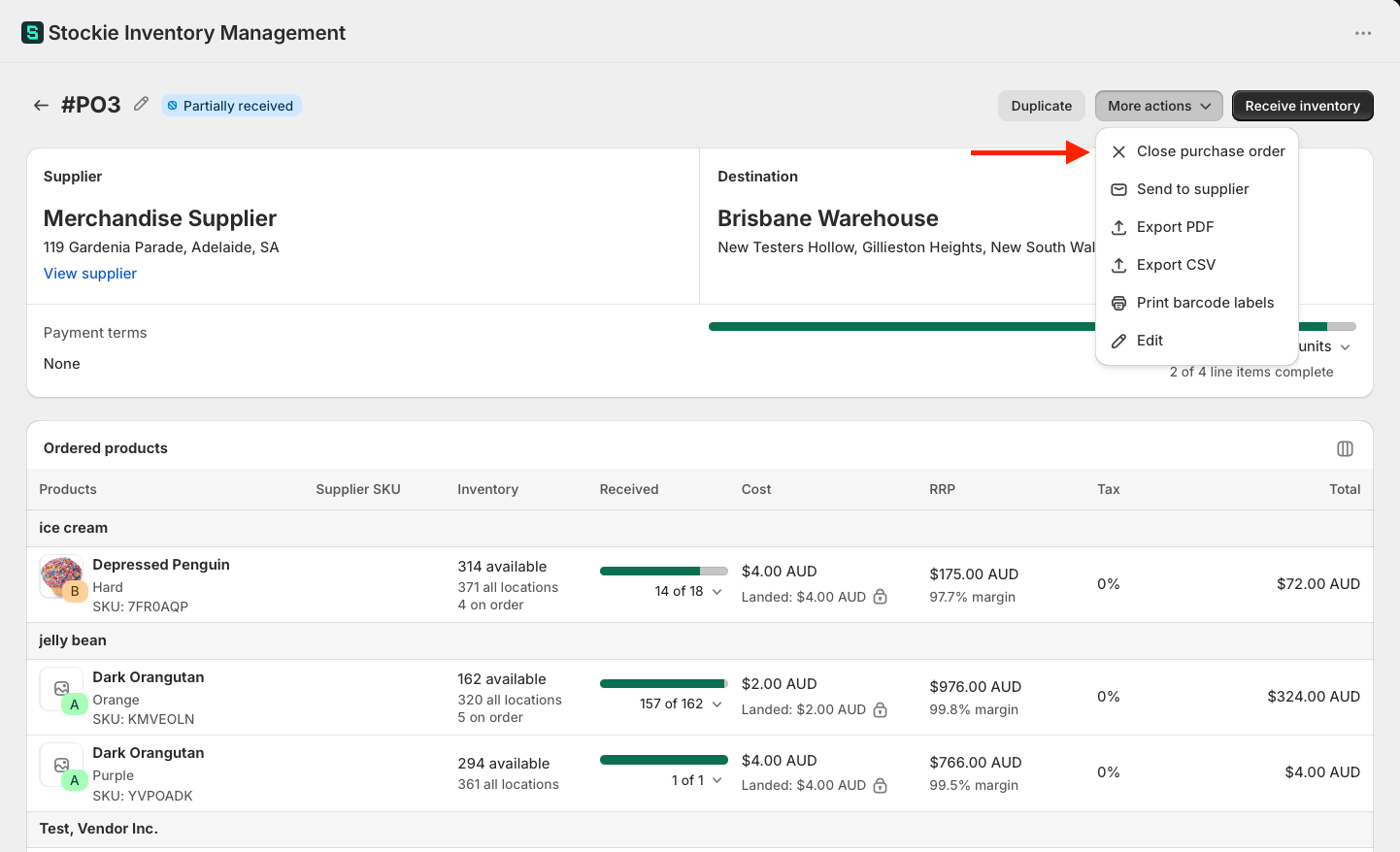
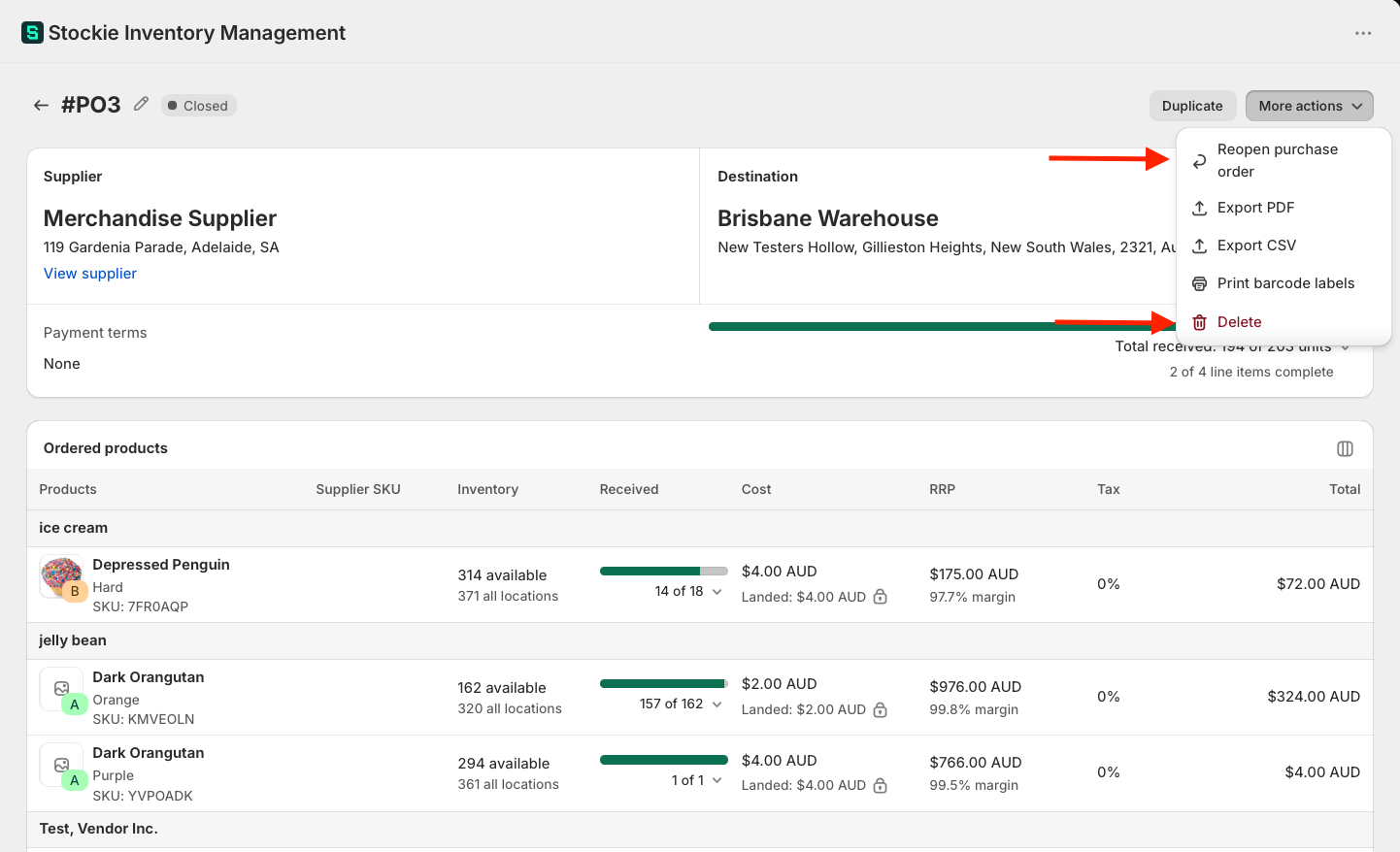
Closing also releases any incoming quantities the order was still holding in Shopify - whatever is left outstanding after what you have already received or rejected. On a partly received order that means the undelivered remainder, not the stock that arrived.
Reopening instead of deleting
Closing is not final. A closed purchase order can be brought back with More actions → Reopen purchase order, which is usually the better move if you closed one by mistake or a delayed delivery turns up after all.
Reopening works out the right status from what was received rather than always returning the order to Ordered:
- Nothing received or rejected - back to Ordered
- Some received or rejected - back to Partially received
- Every line fully received - back to Received. Each line needs its accepted and rejected units to cover what was ordered on that line, so extra units on one line do not make up for a short line elsewhere
The outstanding quantities go back to Shopify as incoming at the same time, so the order picks up where it left off.
Deleting is permanent - there is no way to restore a deleted purchase order yourself. If there is any chance you will want the record, close it and leave it closed.
Going back to a draft
An ordered purchase order cannot be flipped back to Draft. To get a clean copy to work from:
- Open the ordered purchase order and choose Duplicate. You get a fresh draft with the same lines.
- Close the original.
Removing a duplicate order
If you created the same order twice, check whether anything was received against the copy before you delete it. Receiving added that stock to Shopify, so deleting the order without reversing the receipt first leaves your inventory overstated.
Unreceive first, then close, then delete. See receiving inventory on a purchase order.