Scoping the forecast
Available on: Pro and above.
Scope decides which products and which locations the forecast covers. Narrowing it is how you stop dropshipped lines, samples or discontinued ranges appearing in your replenishment list.
Set it at Forecast & replenishment → Manage settings → Scope .
What is included by default
Every active product in your store, across your locations.
Products that are draft or archived in Shopify are already excluded. You do not need a rule for them, and a discontinued line archived in Shopify has already left your forecast.
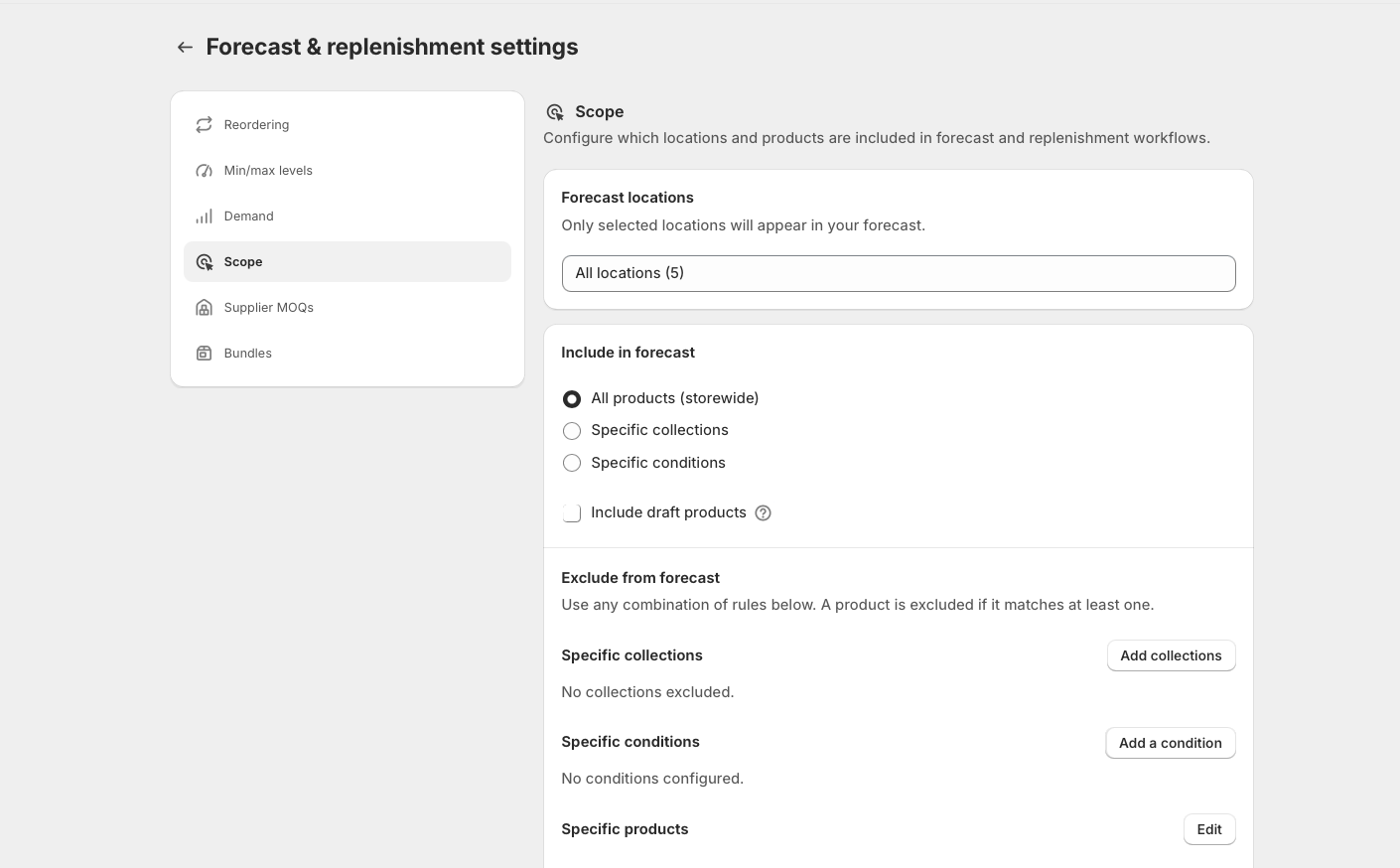
[SCREENSHOT: forecast-scope-screen - The Scope settings screen showing the include and exclude sections]
Choosing what to include
Choose one of three:
- All products (storewide) - everything active, the default
- Specific collections
- Specific conditions
Excluding is different in shape. Rather than picking one method, you can use all three together: specific collections, specific conditions and specific products, each with its own list.
Include and exclude work together. Include a collection and exclude a tag within it, and you get the collection minus the tagged products.
Conditions
A condition matches products on one of their fields:
| Field | Operators |
|---|---|
| Product title | All |
| Variant title | All |
| Type | All |
| Vendor | All |
| SKU | All |
| Supplier | All |
| Category | is equal to, is not equal to |
| Tag | is equal to, is not equal to |
| Collection | is equal to, is not equal to |
| ABC class | is equal to, is not equal to |
| Continue selling when out of stock | is equal to |
"All" means is equal to, is not equal to, starts with, ends with, contains and does not contain. Multiple conditions combine with AND or OR.
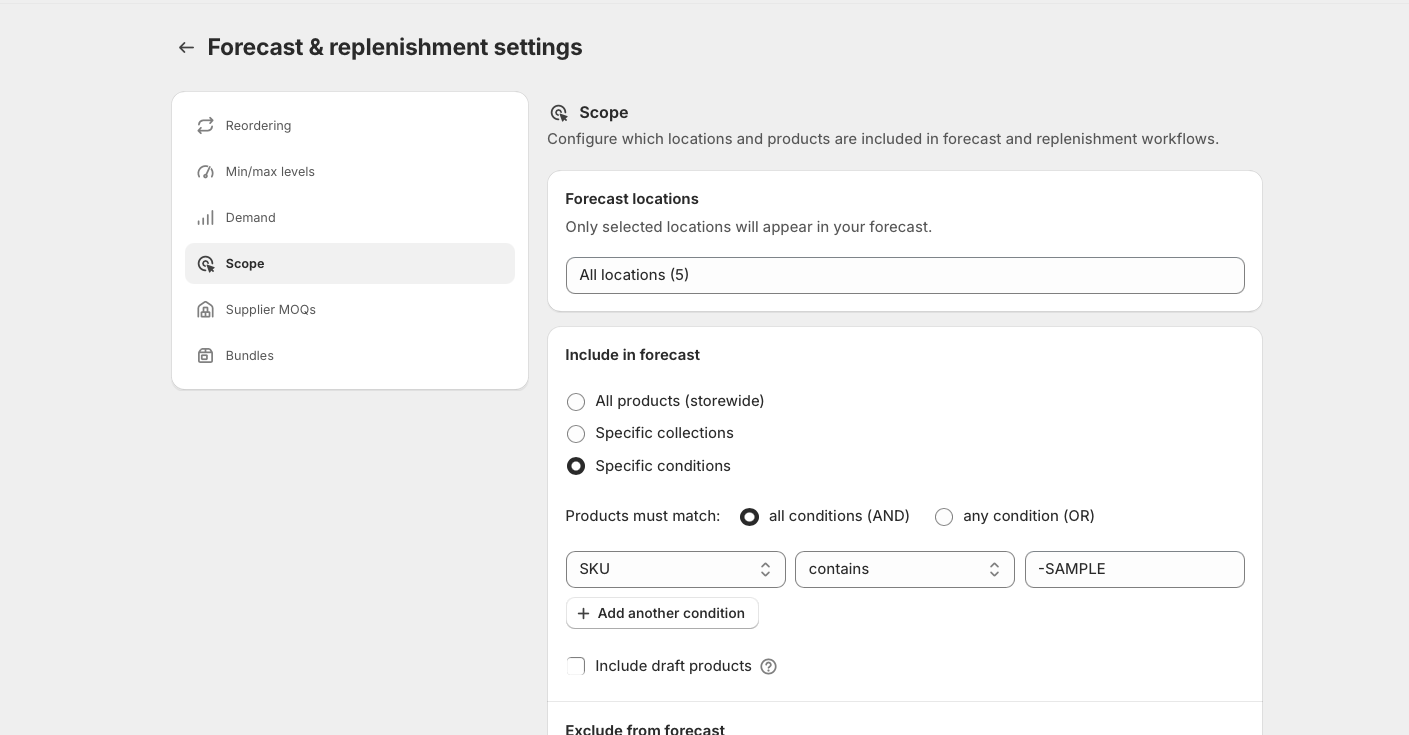
This is what makes SKU patterns useful. If your sample variants all carry -SAMPLE in the SKU, one condition scopes the forecast to them, or removes them from it. The same applies to a character you use to mark discontinued lines.
Location scope
You also choose which locations are forecast.
A location left out of scope gets no forecast records at all. On the Forecast & replenishment page it reads as though it holds no stock - not because the stock is missing, but because nothing was calculated for it.
If a location looks empty and you expect it to hold inventory, check here first.
Excluding versus not restocking
Two different jobs:
- Exclude from scope when you do not want the product forecast at all. It disappears from the forecast entirely.
- Set a max of 0 in min/max levels when you do want it tracked, but never want stock held - ordering only what you are short. See Min/max levels.
Use exclusion for lines you have stopped selling. Use max 0 for lines you sell but never carry.
When a scope change takes effect
At the next forecast run. To see it immediately, press Run forecast.
Scope is not notification conditions
These are separate systems that look alike.
Scope controls what the forecast covers. A notification's include and exclude settings control what that notification watches. Changing one does not change the other, and a product can be in your forecast but outside a notification, or the reverse.