Min/max levels
Available on: Pro and above.
Min/max levels let you set fixed reorder points instead of forecast-driven ones. Min is the level at which a variant should be reordered. Max is the level you want to replenish back up to.
Set them where you want fixed control, and leave everything else on the forecast. The two work side by side: a variant with min/max levels uses them, and a variant without them uses the forecast.
Find them at Forecast & replenishment → Manage settings → Min/max levels .
Min/max levels are per location
This is the detail that causes the most confusion, so it comes first.
Every min/max level belongs to one variant at one location. Set a level at your warehouse and it applies to the warehouse only - the same variant at your shop is untouched.
Two consequences:
- Use the location selector on the Min/max levels screen to choose which location you are editing before you type anything.
- Create the purchase order for that same location. A PO raised against All locations does not use levels you set at a specific one, which is the usual reason overrides look as though they did nothing.
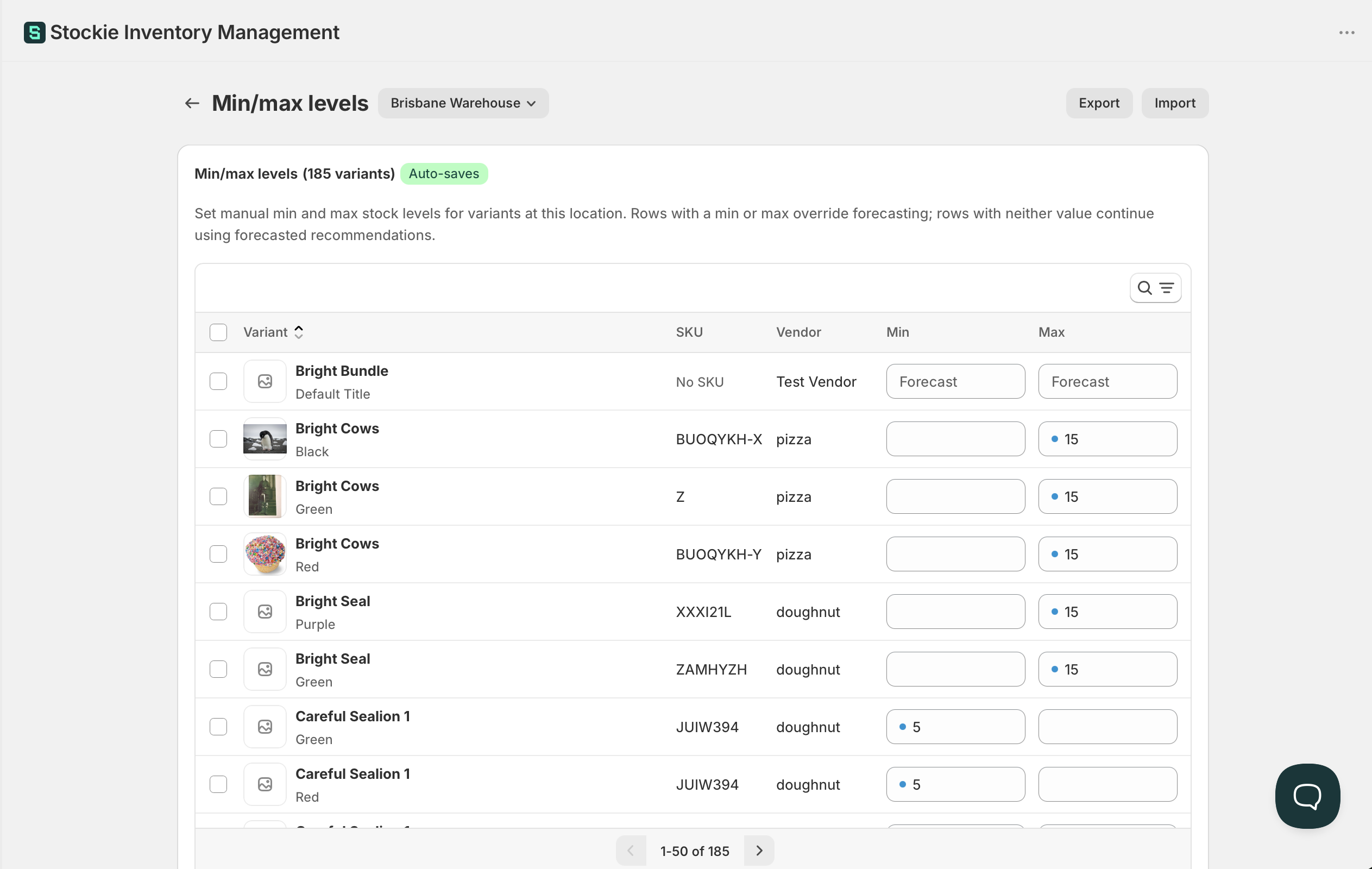
Setting levels
- Go to
Forecast & replenishment → Manage settings → Min/max levels. - Choose the location.
- Enter a Min, a Max, or both, against the variants you want to pin.
You can set one without the other. Max must be greater than min where both are set, and neither can be negative.
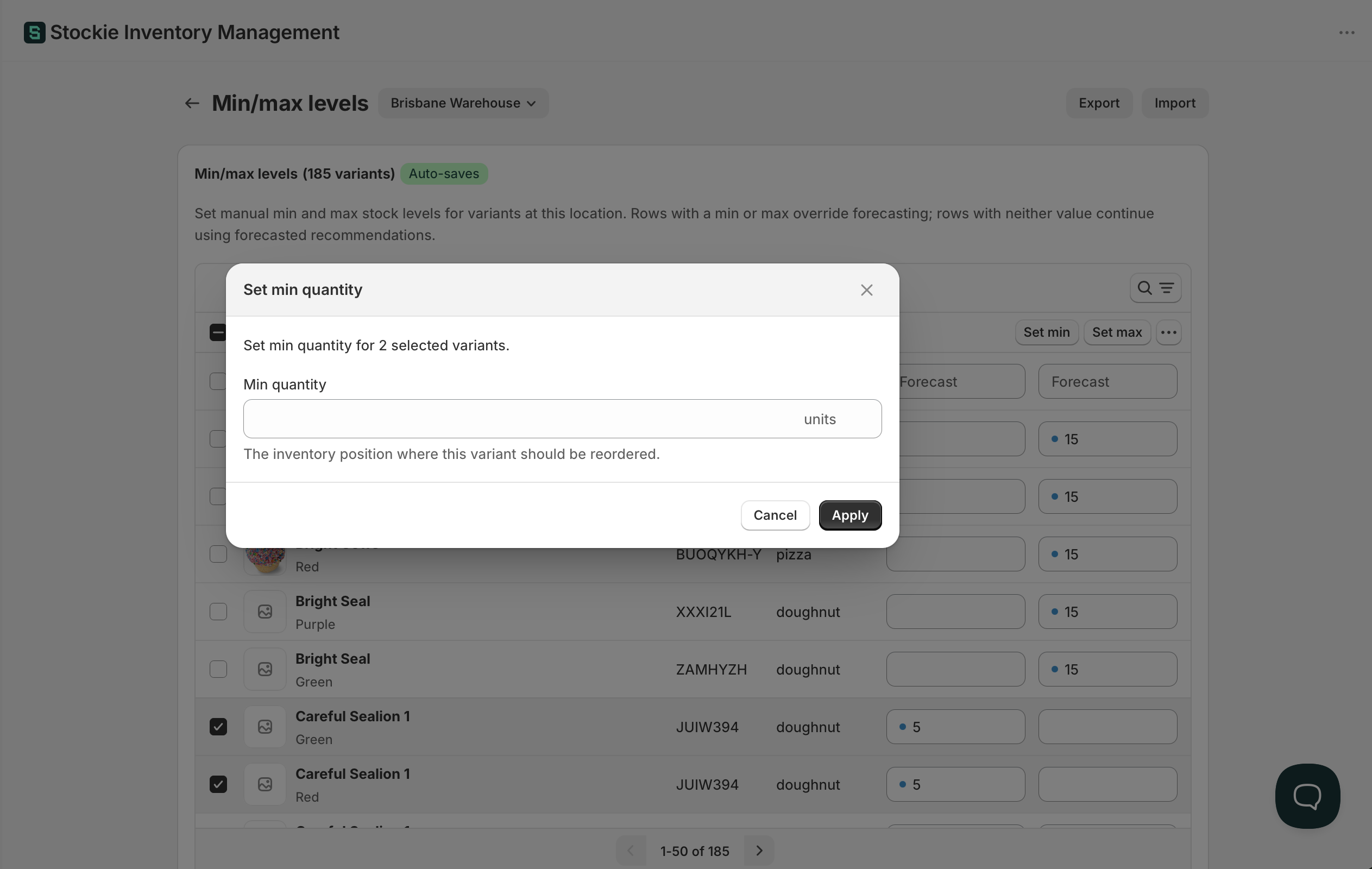
To apply the same value across many variants, filter the table, select the rows and use Set min or Set max.
Going back to the forecast
A pinned variant stays pinned until you unpin it, so this is how you hand one back.
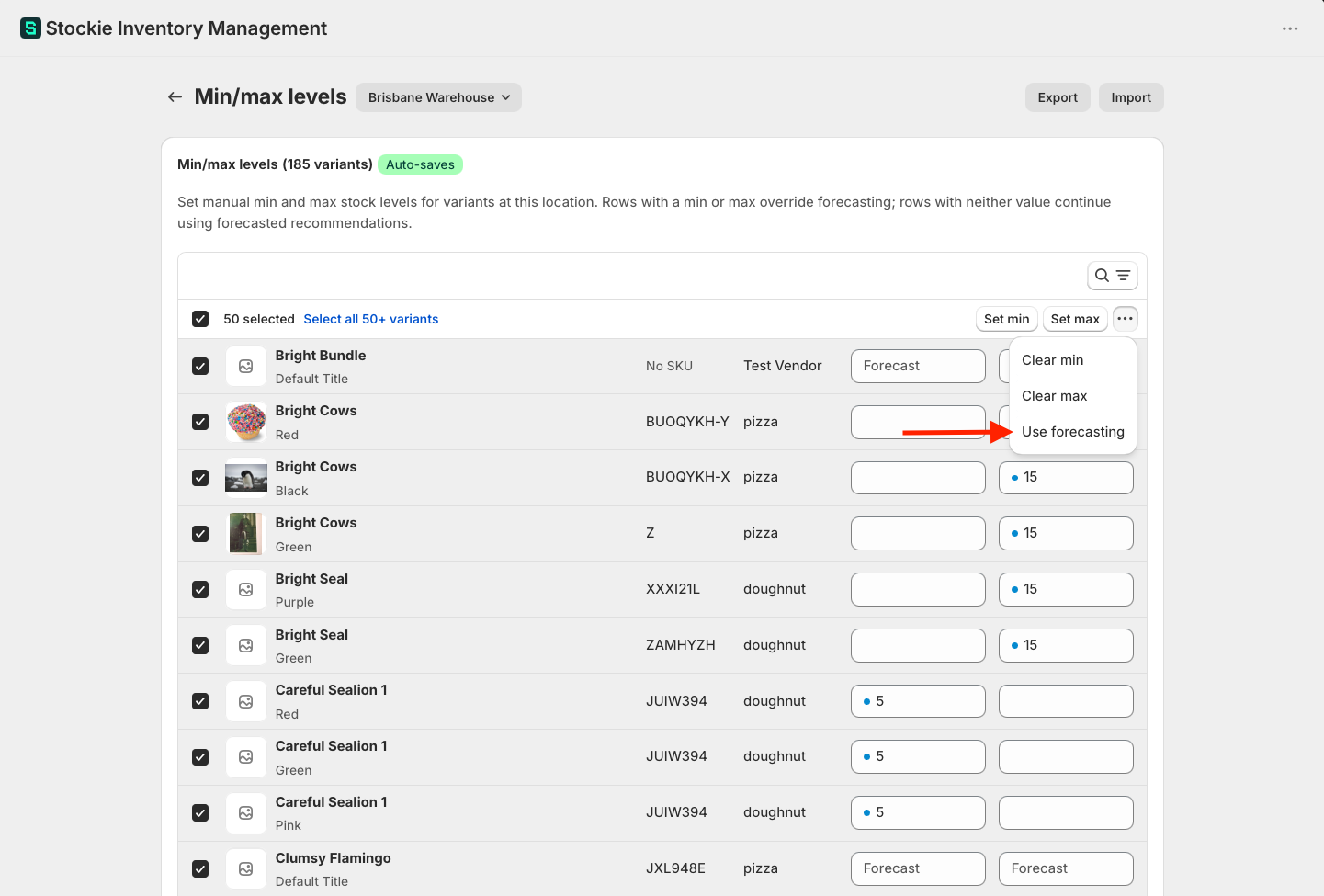
Select the variants on the Min/max levels screen and choose Use forecasting. It clears both levels and those variants return to forecast-driven replenishment. Clear min and Clear max do the same for one level at a time, if you want to keep the other.
Ordering exactly what is short
Leave min blank and set max to 0 to order exactly the quantity you are short, with nothing held in stock.
This is the pattern for suppliers you never carry stock for - made-to-order lines, or a dropship range you buy only against demand.
Importing levels by CSV
For large changes, import a CSV rather than editing rows.
The file needs a column identifying the variant and at least one level column:
SKUorVARIANT ID- requiredMIN QUANTITYandMAX QUANTITY- at least one requiredLOCATION ID- optional
MIN and MAX are accepted as column names too.
Rows are rejected with the reason given, and the most common rejection is MAX QUANTITY must be greater than MIN QUANTITY. A row where the two are equal fails - if you want to order back to exactly the reorder point, set max one unit above min, or use the blank-min pattern above.
Going back to the forecast
To hand variants back to forecast-driven replenishment, select them on the Min/max levels screen and choose Use forecasting from the bulk actions.
That clears the stored levels for those variants at the selected location. Clear min and Clear max remove one level and leave the other in place.

What can still change the quantity
A min/max level sets the target, but the quantity on a purchase order can still come out higher.
Supplier minimum order quantities and pack sizes round the suggestion up. Ordering back to a max of 50 from a supplier who ships in cartons of 12 gives you 4 cartons, not 50 units. See MOQs and pack sizes.