Making inventory adjustments
Available on: Pro Plus.
An inventory adjustment corrects on-hand quantities with a reason attached. Use it for shrinkage, damage, gifts and one-off corrections - anything that changes your stock without a sale or a delivery behind it.
For counting a whole location or category, run a stocktake instead. See Running a stocktake.
Before your first adjustment
Adjustments need inventory write access, which Stockie asks Shopify for the first time you use them. Someone who can approve app permissions for the store has to grant it.
If you see an error about requesting inventory access, that is what it means - it is a permission that has not been granted yet, not a fault.
Creating an adjustment
- Go to
Adjustmentsand click Create adjustment. - Choose the location you are adjusting.
- Add the products and the quantities you are adjusting them by.
- Choose a reason.
- Record who made it.
The reason applies to the whole adjustment, not to individual lines. If some lines are damage and others are shrinkage, make two adjustments so your reporting stays meaningful.
An adjustment holds up to 5,000 lines. A CSV import is often quicker for a long list - see Bulk adjustments via CSV.
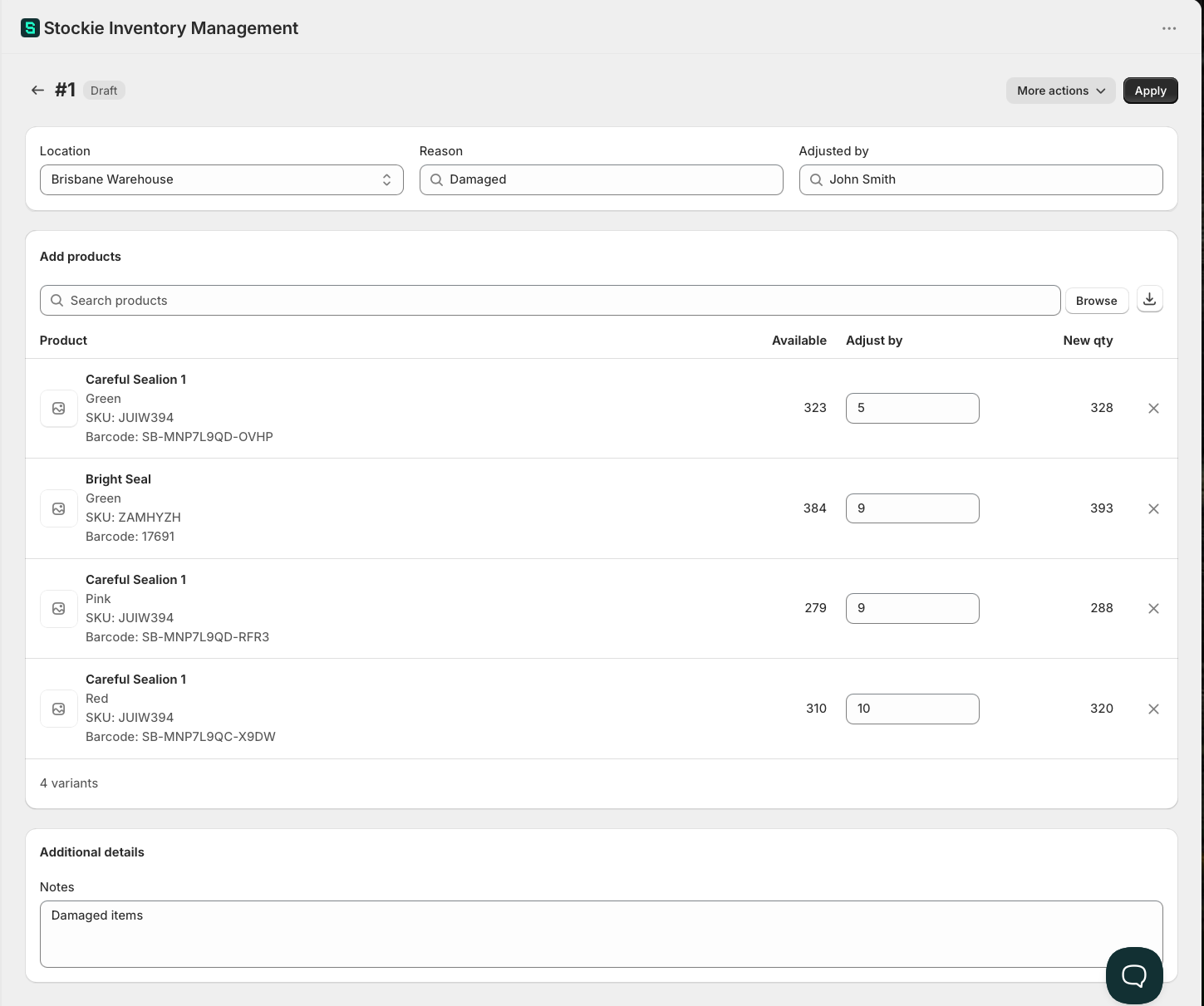
Reasons
Six reasons come with Stockie:
| Reason | Use it for |
|---|---|
| Correction | Fixing a number that was simply wrong |
| Count | The result of counting stock |
| Damaged | Stock written off as unsellable |
| Shrinkage or loss | Stock missing with no known cause |
| Returned to supplier | Stock sent back |
| Promotion or donation | Stock given away |
You can add your own reasons for categories that matter to your business. The reason field is a Select or create a reason box, so you can add one as you go, and they are also managed under Settings → Adjustments .
Each reason is mapped to the closest equivalent in Shopify's own adjustment history, so your Shopify records stay meaningful too. A custom reason records as a correction there, since Shopify only accepts its own list.
A reason is required before an adjustment can be applied.
Drafts and applied adjustments
An adjustment starts as a draft. Drafts are fully editable - add lines, change quantities, change reasons, delete it entirely.
Applying it writes the changes to Shopify. That runs in the background: the adjustment shows Processing while Shopify is updated, then Completed. If it stops before anything was written, it goes back to Draft so you can apply it again. If it stops after part of the update may have landed, it stays locked and asks you to contact us with the adjustment number.
An applied adjustment cannot be undone. Its quantities, lines and location are fixed, so correcting a mistake means making a second adjustment that cancels the first. Check the lines before you apply.
You can still change the reason, who it was recorded against and the notes afterwards. See Adjustments lock after apply.
On the Adjustments list, Location, Status and Created by filters help you find one again.
Bundle products
Shopify works out a bundle's inventory from its components, so a bundle product cannot be adjusted directly. If one is on an adjustment, nothing is written and the adjustment names the bundles it found, so you can remove those lines and adjust the component products instead.
Adjustments change quantity, never cost
An adjustment moves how many units you have. It does not change what those units cost.
That matters when the problem is a wrong cost rather than a wrong quantity. Adjusting the quantity down and back up will not correct a cost - the cost stays as it was.
Fix it on the purchase order instead. If the stock has not been received yet, correct the unit cost on the receive screen. If it is already in, get in touch: a corrected cost applies to your next receive rather than one that has already happened, so putting it right depends on what has happened since.
Adjustments made by stocktakes
A stocktake creates its own adjustment record when it updates Shopify. That adjustment belongs to the stocktake and cannot be applied or edited by hand - it is a record of what the count did, reachable from the completed stocktake under Linked adjustments.