Notification conditions
Available on: Advanced and above.
Conditions decide which products a notification covers using rules, rather than a hand-picked list. They are how you get one alert per supplier or per category instead of a single storewide list you have to read through.
Set them at Notifications → [notification] → Manage products and thresholds , under Include in this notification, by choosing Specific conditions.
Building a condition
A condition is a field, an operator and a value:
| Field | Operators |
|---|---|
| Product title | All |
| Variant title | All |
| Type | All |
| Vendor | All |
| SKU | All |
| Supplier | All |
| Category | is equal to, is not equal to |
| Tag | is equal to, is not equal to |
| Collection | is equal to, is not equal to |
| ABC class | is equal to, is not equal to |
| Continue selling when out of stock | is equal to |
"All" means is equal to, is not equal to, starts with, ends with, contains and does not contain. Combine several conditions with AND or OR.
Supplier appears once your supplier setup is complete, and ABC class once you have forecast data to classify against.
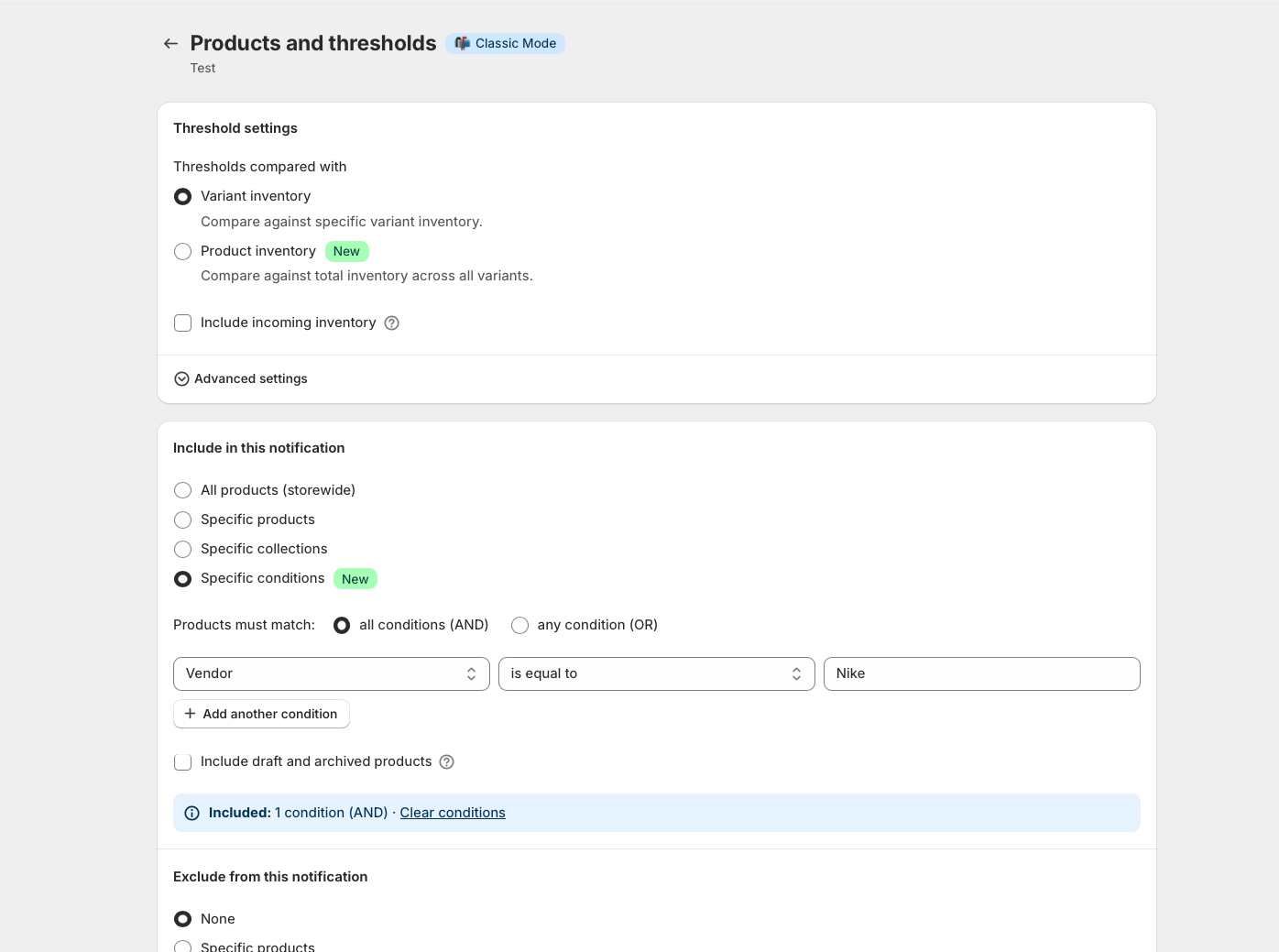
A per-vendor alert
The common case. To review reorders one supplier at a time rather than as one long list:
- Create a notification named after the vendor.
- Under Include in this notification, choose Specific conditions.
- Set
Vendor is equal to [the vendor]. - Set thresholds and recipients as normal.
Repeat per vendor. Each alert then arrives as a self-contained list you can act on in one go, which is a very different job from scanning a storewide email for the six lines that concern one supplier.
Including and excluding together
You can exclude by specific products, specific collections or conditions - the same ways you include, minus storewide, which would leave nothing to watch.
They combine, so include storewide, exclude Tag is equal to discontinued watches everything except the discontinued range - and keeps working as you tag more products that way.
Where both a condition and an exclusion match a product, the exclusion wins.
Which product statuses are watched
Notifications alert on active and unlisted products. Draft and archived products are left out, whatever your conditions match.
If you do want them included, tick Include draft and archived products alongside your include settings. It is per notification, so one alert can watch drafts while the rest ignore them.
Notification conditions are not forecast scope
These look alike and are separate systems.
A notification's conditions decide what that notification watches. Forecast scope decides what the forecast covers. Changing one does not change the other, and a product can be in your forecast but outside a notification, or the reverse. See Scoping the forecast.