Editing a purchase order
Available on: Pro Plus.
An ordered purchase order is not frozen. You can add lines, change quantities and correct costs without recreating it.
Editing a draft
A draft is edited directly on the page. Change what you like and save.
Editing after it has been ordered
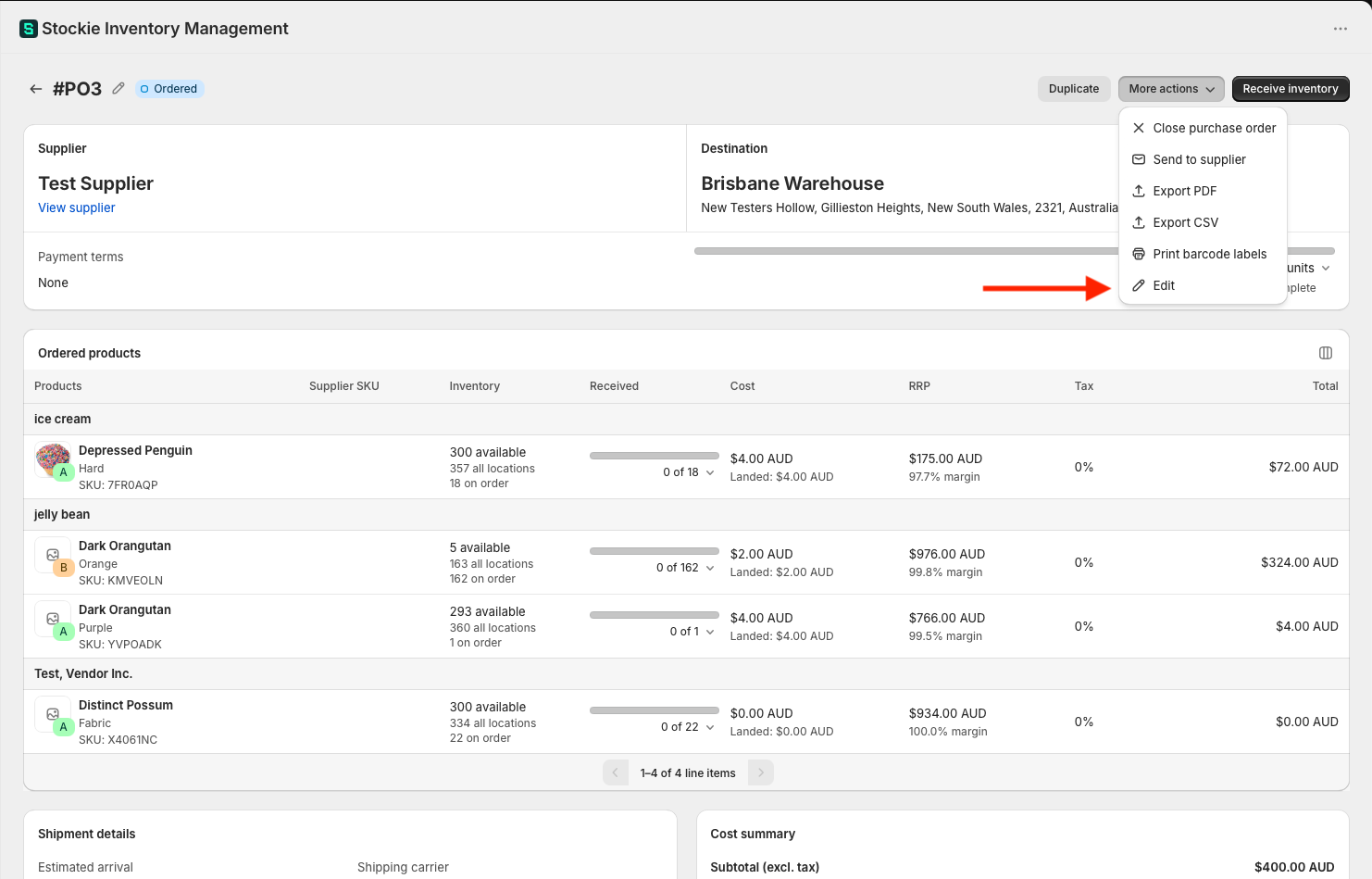
Open the purchase order and choose More actions → Edit. From there you can add products, change quantities and adjust costs, the same as a draft.
Edit is available on Ordered, Partially received and Received orders. It disappears once an order is Closed - reopen it first if you need to make a change.
The supplier and destination are fixed once an order is placed. Everything else on the order can still be changed, but those two are read-only on the edit screen. If either is wrong, duplicate the order onto a fresh draft and close the original.
Changing quantities updates Shopify
Editing quantities on an ordered purchase order adjusts the incoming quantity in Shopify to match. Add ten units to a line and Shopify shows ten more on the way; cut a line back and the incoming figure drops.
Stock you have already received is not affected - only what is still outstanding.
Saving an edit also works the order's status out again. An order is Received only while every line has been fully received, so adding a line or raising a quantity on a Received order takes it back to Partially received, and lowering a quantity to what has already arrived can complete it.
Removing a line
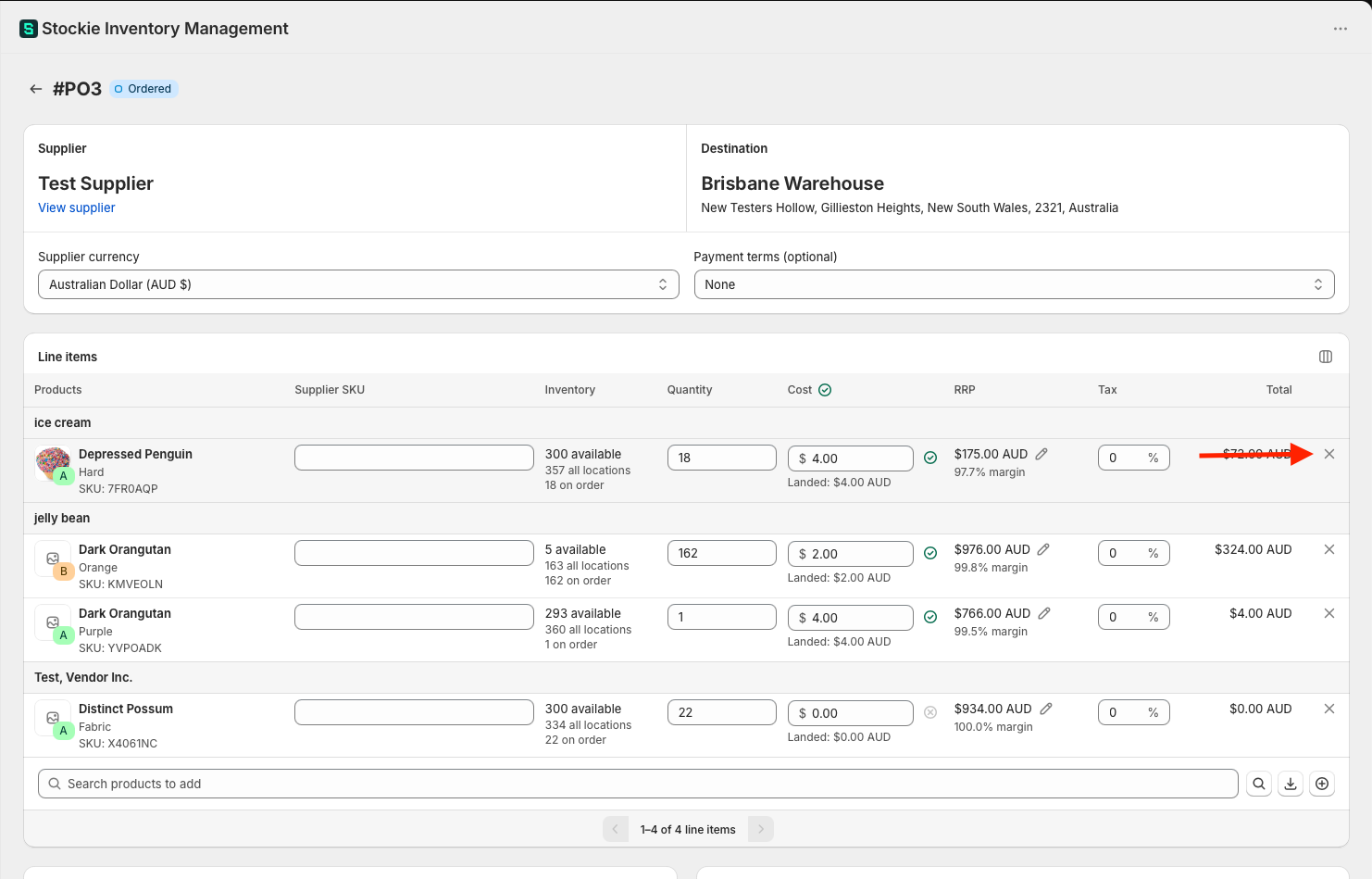
Hover the line and use the remove control at the end of the row, then save.
Two things catch people out:
- Setting the quantity to zero does not remove a line. An active line has to have a quantity above zero, so the save is rejected. Use the remove control instead
- The control sits at the far right of the row. On a narrow window it can be off-screen, so scroll the table sideways if you cannot see it
A purchase order also has to keep at least one line item. To get rid of the last one, delete the order.
Lines you cannot remove
Once units have been received or rejected against a line, that line stays on the order permanently. Unreceiving it back to zero does not release it, because the receipt is part of the order's history.
If the line should not have been there, set the outstanding quantity to what actually arrived and leave the line in place.