Importing line items from a CSV
Available on: Pro Plus.
If your supplier sends an order form as a spreadsheet, or you build orders outside Stockie, you can load the lines from a CSV rather than adding products one at a time.
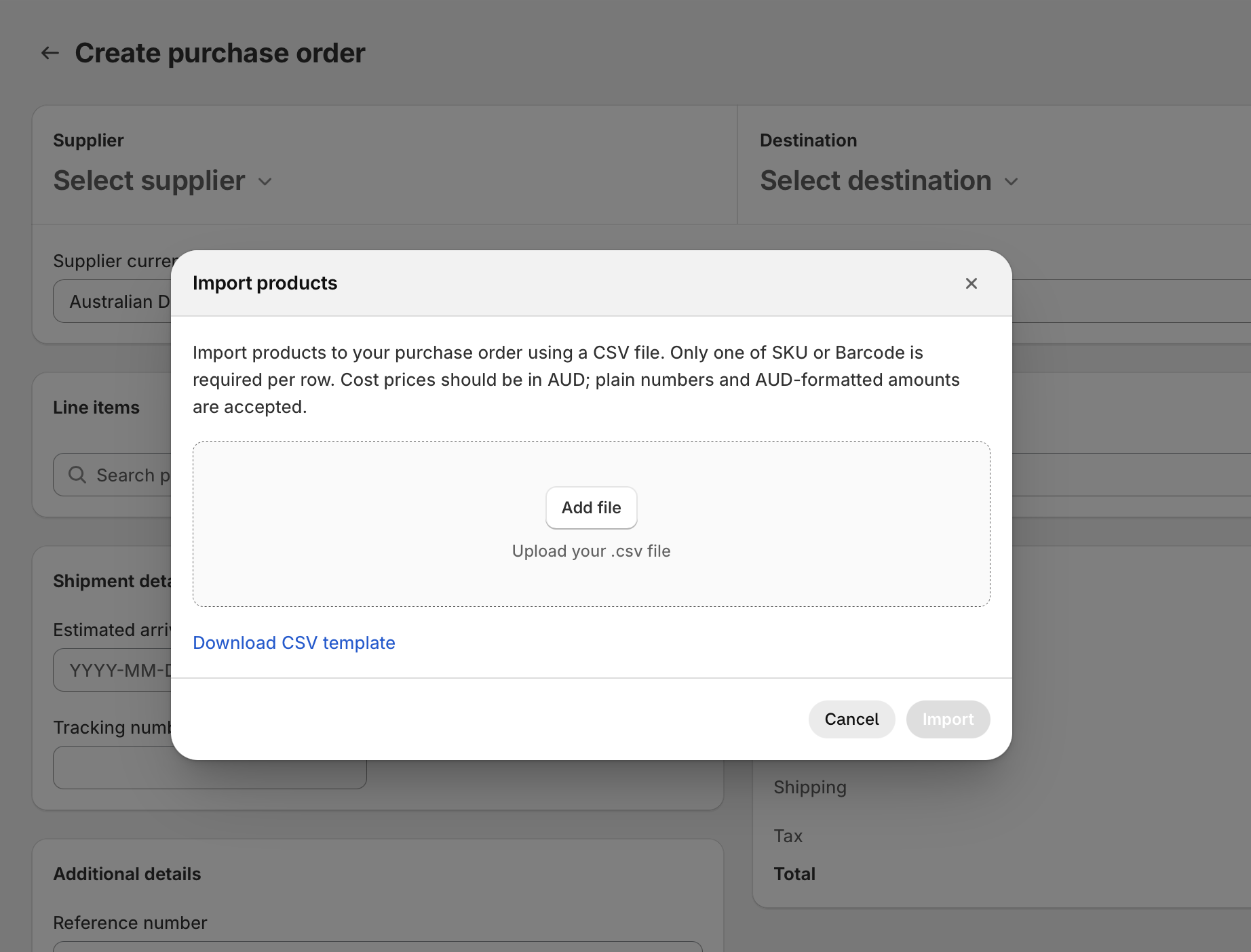
Importing
- On the purchase order, use Import CSV beside the product search.
- Download the template from the window that opens.
- Fill it in and upload it.
The lines are added to the order, where you can adjust them like any others.
What the file needs
| Column | Required |
|---|---|
SKU or BARCODE |
One of the two, to identify the product |
QTY |
Yes - QUANTITY also works |
COST |
Optional |
TAX |
Optional - TAX RATE also works |
Quantities must be positive whole numbers. A file can hold up to 5,000 rows - split anything larger.
Costs can be entered as they appear on your supplier's paperwork. Currency symbols and thousands separators are handled, so there is no need to strip them out first.
The template from the import window already has these columns, which is the easiest place to start.
Re-importing a purchase order you exported
If your store's supplier documents use the QTY / UOM / UNITS layout, an exported CSV holds packs in QTY , so Stockie takes the quantity from UNITS instead when the file is a genuine export: every row's UOM has to be one Stockie prints, Each or Pack of 24. Any other file, including one of your own that happens to have a UNITS column, still reads QTY .
On an export, QTY and UNITS have to agree. If one was edited and the other was not, the row is reported with QTY and Units do not match. Make them match, or delete the UOM and Units columns to import QTY as units.
Products have to exist in Shopify first
Rows are matched against your Shopify catalogue. A product that does not exist there yet cannot be matched, and that row will not be added.
If you are ordering something you do not stock as a product, add it as a custom item instead. See creating a purchase order and creating purchase orders from your forecast.
Stockie tells you what it could not import
You do not have to work out what happened by comparing counts. After an import you get a summary of how many products were added, along with anything that needs your attention:
- SKUs or barcodes that could not be matched, listed so you can see which
- Archived product matches, which are skipped
- Rows matching more than one variant. All the matching variants are added, so one row can produce several lines - worth checking if your line count is higher than your row count
- Duplicate identifiers in the file
- Rows that failed validation, such as a missing or non-numeric quantity
If nothing at all could be imported, the summary says so rather than quietly adding nothing.
Empty rows and stray formatting are ignored rather than causing a failure.
If a row did not match
- Check the SKU or barcode in the file matches Shopify exactly
- Check the product exists in Shopify at all, and is not archived