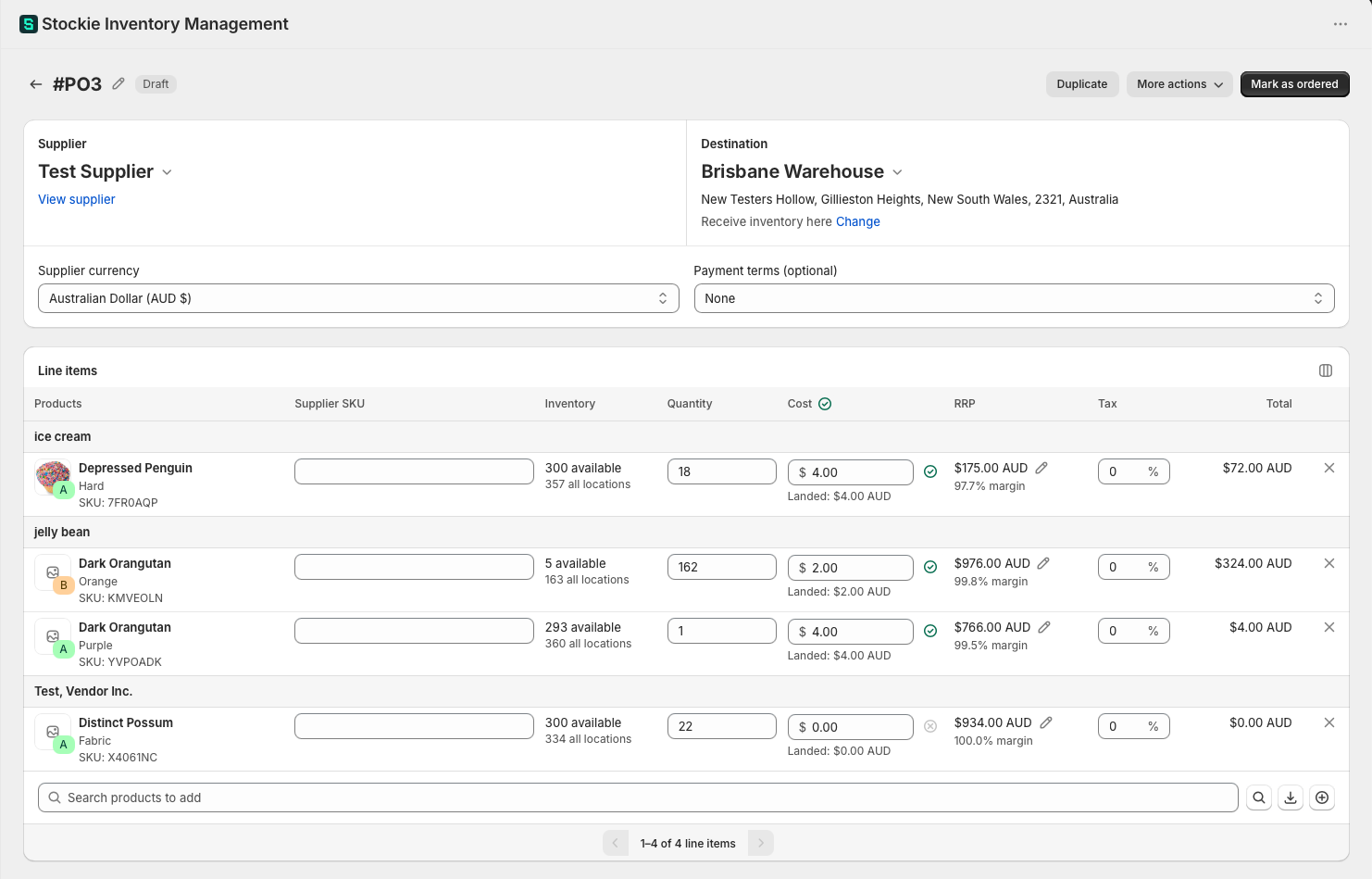
Creating purchase orders from your forecast
Available on: Pro Plus. Forecasting itself is on Pro and above.
Rather than building a purchase order line by line, you can let your forecast fill it. Stockie works out what needs reordering and how much, and you turn that into a purchase order in a couple of clicks.
Two ways in
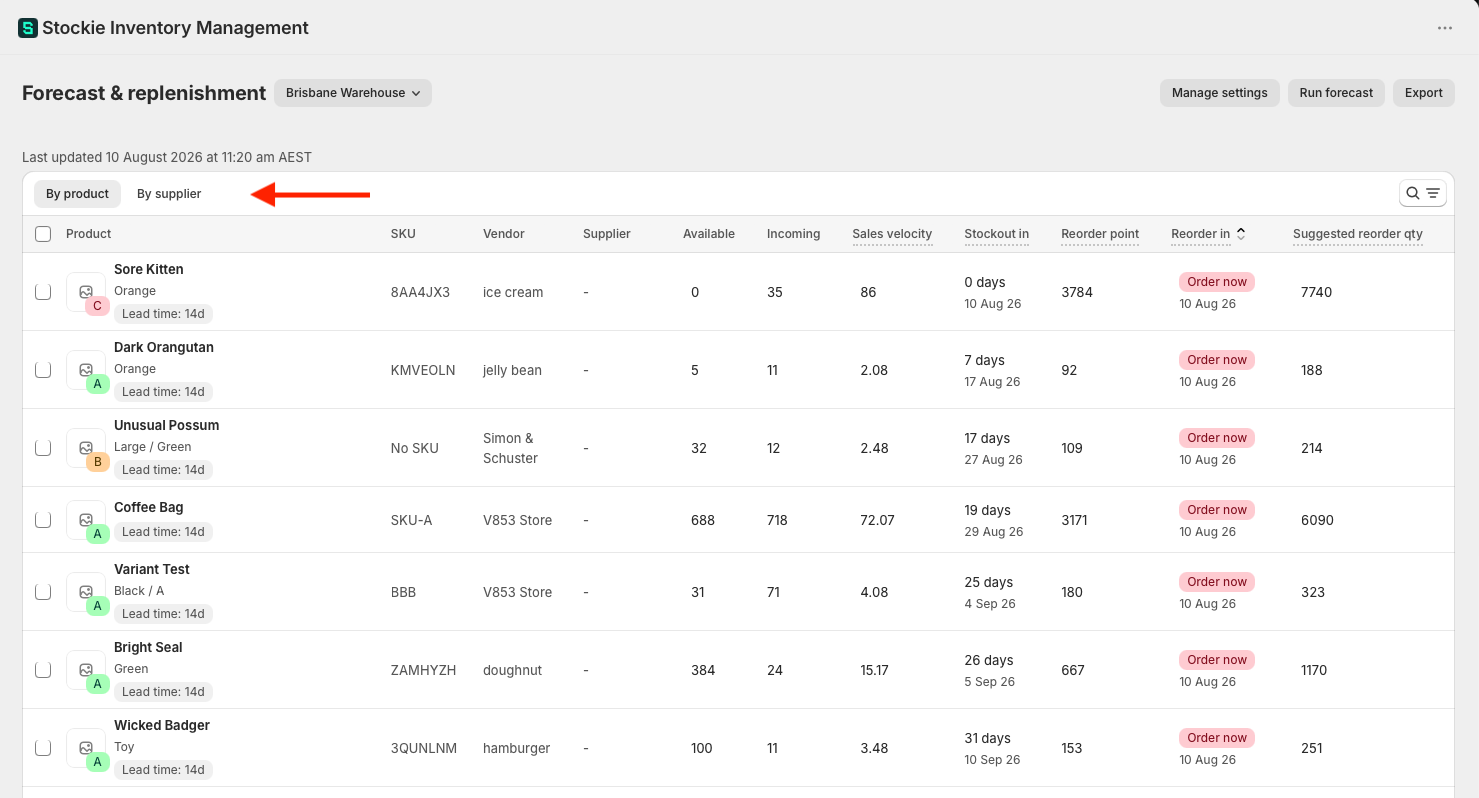
Open Forecast & replenishment . The table has two tabs:
- By product - every variant that needs attention, which you filter and select from
- By supplier - one row per supplier, for when you order supplier by supplier
Both end at the same place: select what you want, then Create purchase order.
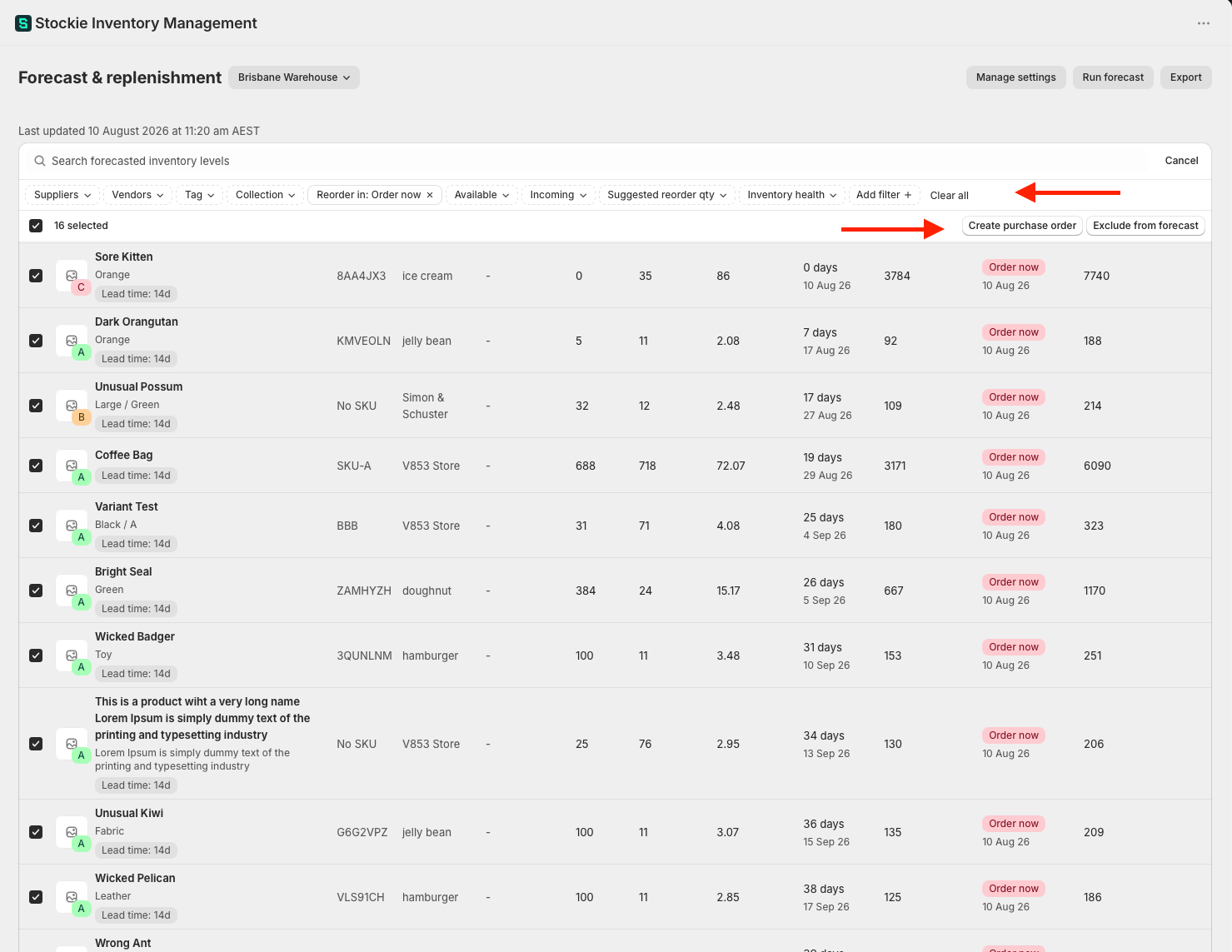
By product
Filter and search the table down to what you are ordering, tick the lines you want, and click Create purchase order.
This suits a mixed order, or picking up specific products you know are running short.
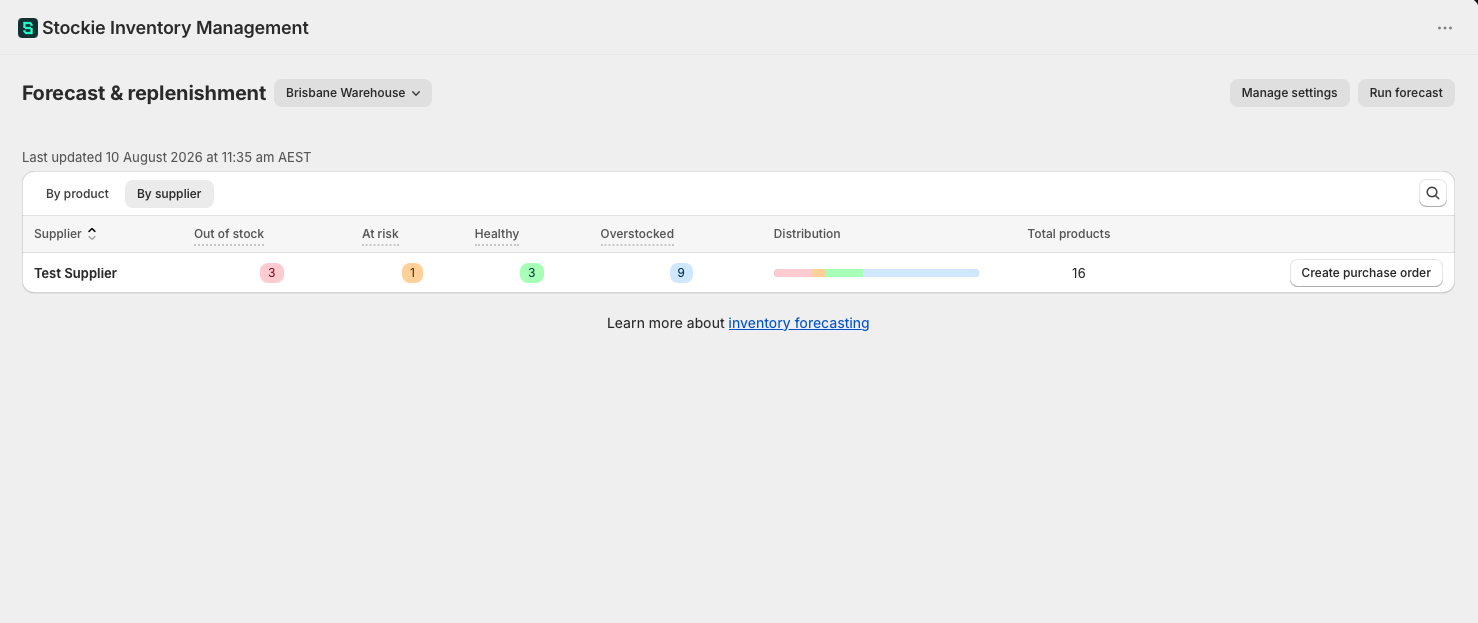
By supplier
Choose a supplier and create a purchase order for just their flagged products. This is the faster route if you buy on a supplier-by-supplier cadence.
One thing to know: this tab lists suppliers from your last forecast run, and it is scoped to the location you have selected. A supplier you created this morning, or one whose products are all at another location, will not be listed yet.
Choosing what goes on the order
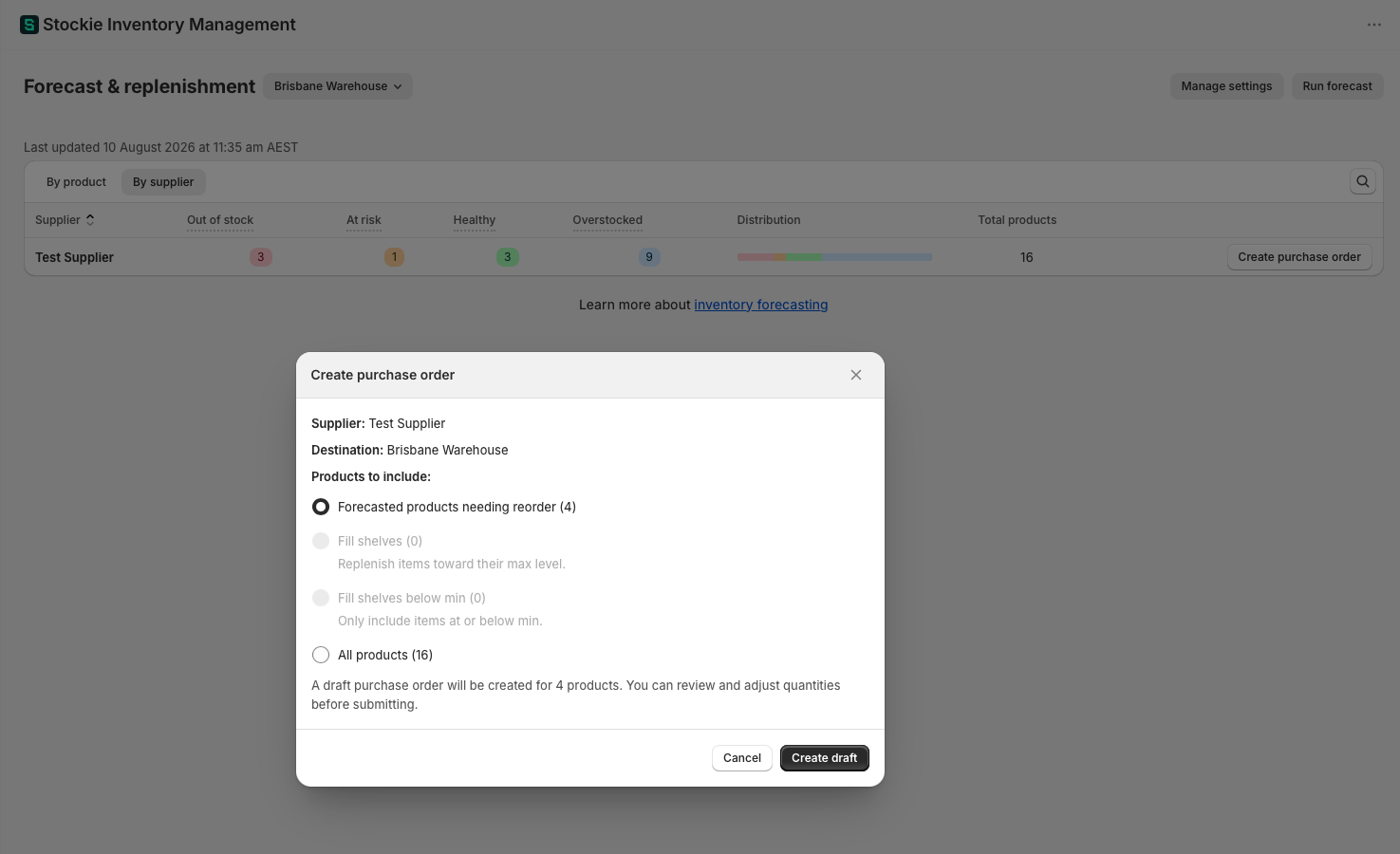
When you create the purchase order, Stockie asks how to populate it:
- Forecasted products needing reorder - the products your forecast says to reorder, at its suggested quantities
- Fill shelves - replenish items toward their max level
- Fill shelves below min - only include items at or below their min
- Selected products - just the lines you ticked
The last three use your min/max levels rather than forecast suggestions, so you can order against fixed targets even when you rely on forecasting elsewhere.
Which supplier the draft gets
The Create purchase order window shows a Supplier: line before you create anything.
- With the Suppliers filter narrowed to one supplier using Is any of, the draft is assigned to them and picks up their currency, payment terms, note to supplier and supplier SKUs.
- Without that filter, Stockie uses the primary supplier when every line shares one. Where they differ it shows None and says the draft will be created without a supplier, which you can set on the draft afterwards.
- On any option other than Selected products it shows Determined from included products, because the final list of lines is settled as the draft is created.
If a filtered selection includes a product that supplier does not supply, Stockie says so and leaves the draft uncreated rather than assigning a supplier that does not match.
The By supplier tab always assigns the supplier you chose.
Ordering for all locations at once
You can create a purchase order from the All locations view. Because those rows combine your locations, they do not belong to any single one, so Stockie asks you to choose a Destination for the order when you create it.
Your forecast is a snapshot
The forecast is rebuilt once a day, and everything on these tabs reflects that last run. Stock you ordered this morning, a supplier you just created, and products you just linked will not appear until it runs again. Click Run forecast to rebuild it now.
This is behind most surprises on this screen - a product still showing as needing reorder after you ordered it, or a supplier missing from the By supplier tab. See the forecast is a snapshot.
Draft purchase orders work the same way. A draft you created yesterday is a snapshot from yesterday, and it will not pick up sales since. Re-run the forecast and create a fresh one if the numbers matter.
Before you send it
Everything lands as a Draft, so nothing has gone to your supplier and nothing has changed in Shopify. Review the quantities, remove anything you do not want, and add lines by hand if you need to.
Once a purchase order is marked Ordered, its quantities count as incoming and the forecast stops suggesting those products at the next run.