Taxes on purchase orders
Available on: Pro Plus.
Tax on purchase orders is set up in two steps: create the rates you use, then decide which products get which rate.
Step 1: create your rates
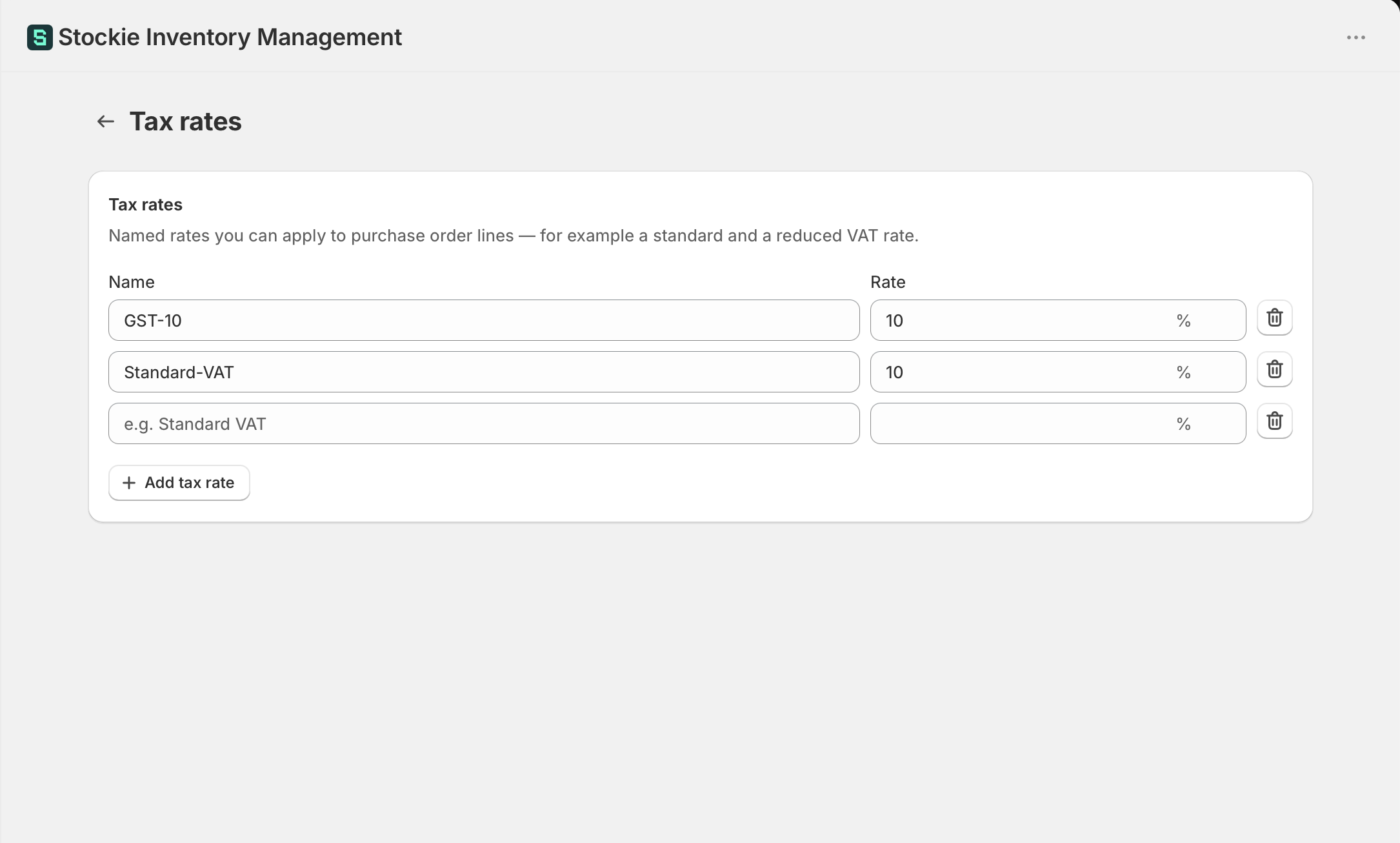
Go to Settings → Taxes → Tax rates and add each rate you need, with a Name and a Rate. Give them names you will recognise on a purchase order, such as GST 10% or Standard VAT.
Rate names have to be unique.
Step 2: decide what they apply to
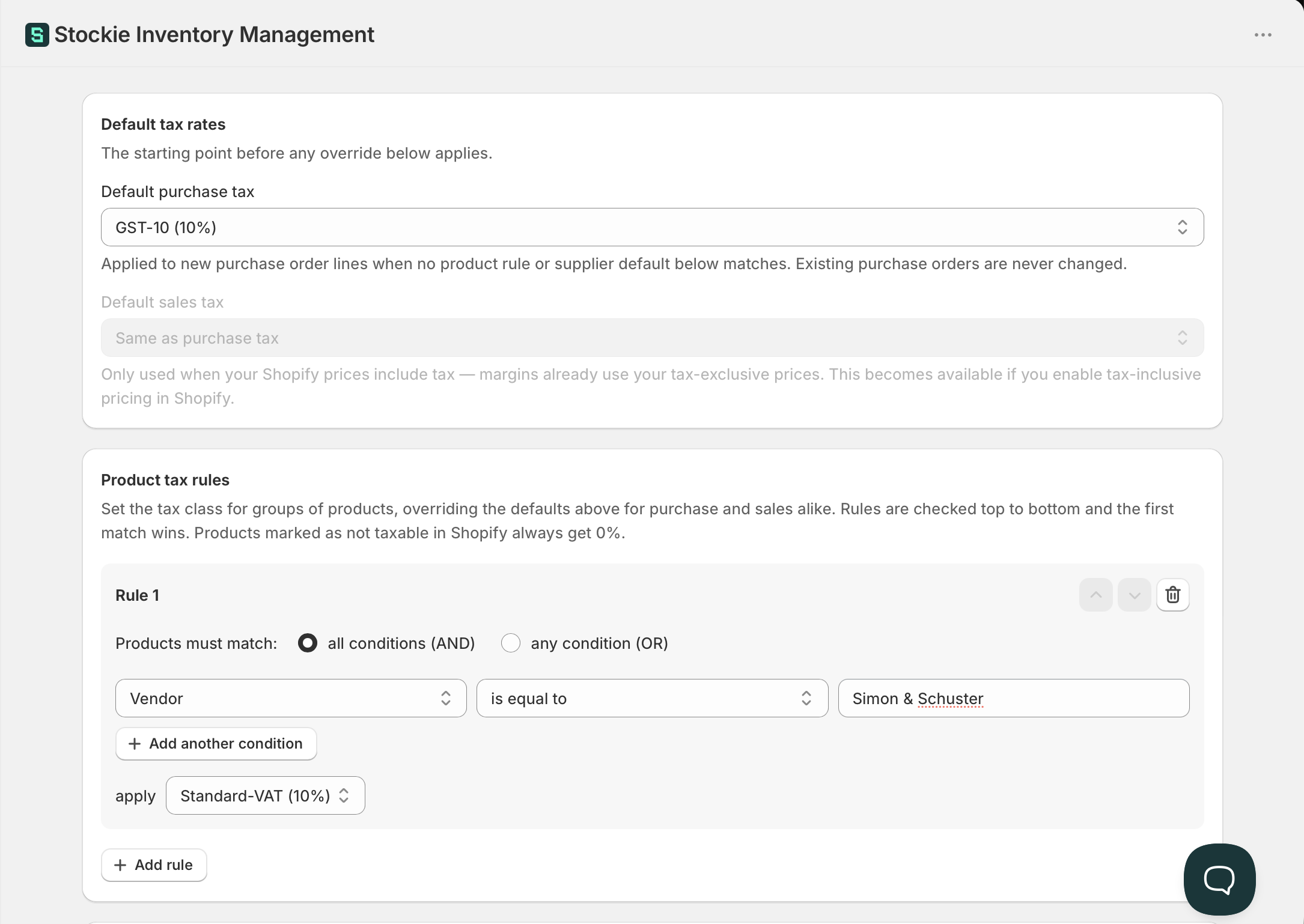
Go to Settings → Taxes → Tax rules . Set a Default purchase tax, which applies to everything unless another rule overrides it, and add rules for the exceptions.
If most of what you buy is taxed at one rate, set that as the default and add rules only for what differs.
There are three defaults on this screen, and they do different jobs: Default purchase tax for what you buy, Default shipping tax for freight, and Default sales tax for margin. Each is covered below.
Setting a rate for one supplier
A supplier can carry its own Default purchase tax, at Suppliers → [supplier] → Manage . It is applied to new purchase order lines for that supplier.
This is the tool for a supplier whose tax treatment differs from everything else you buy - an overseas supplier who charges nothing, or one registered differently from the rest.
A supplier default beats your rules and your shop default. Where one is set, lines for that supplier take its rate regardless of what a product rule or the shop default would otherwise give them.
Tax on shipping
Shipping is taxed separately, and your purchase tax never applies to it. That is deliberate: freight is often taxed differently from the goods, and on an overseas order it is common for one to be taxed and the other not.
Set Default shipping tax at Settings → Taxes for the rate that normally applies to your freight.
A supplier can carry its own Default shipping tax too, which takes precedence. That is how you leave freight untaxed for one supplier: give that supplier a None (0%) rate rather than clearing your shop default.
For a single order, the rate sits beside the shipping amount. Open Cost summary → Manage and you will find Shipping tax rate next to Shipping amount.
Like the other defaults, changing it only affects new purchase orders.
Which rate a line gets
For a purchase order line, Stockie works down this order and stops at the first match:
- The variant is not taxable in Shopify, so it is zero
- The supplier's default purchase tax, if that supplier has one
- The first tax rule matching that product
- Your default purchase tax
- No rate, if none of the above is configured
Zero-rated and international purchases
Rather than removing your default, create a rate of None (0%) and a rule that applies it to the suppliers or products it covers. That keeps your domestic default intact while international orders come through at zero.
Changing a default does not backfill
A tax default applies to purchase orders created after you set it. Orders that already exist keep whatever tax they had, so a rate you fix today will not correct yesterday's orders.
Create a fresh order to check a new default is working.
Overriding tax on a line
Tax is a field on each purchase order line, so you can change it there for a one-off.
Sales tax and your margins
Everything above is purchase tax - what you pay your supplier. It does not affect the margin figures Stockie shows you.
Margin uses sales tax, which is a separate setting: Default sales tax, alongside your purchase default at Settings → Taxes . Leave it unset and it follows your purchase default.
It only comes into play if your Shopify prices include tax. On a tax-exclusive store your selling price is already the amount you keep, so there is nothing to strip out - the setting is greyed out, and becomes available only if you switch Shopify to tax-inclusive pricing. On a tax-inclusive store, the sales tax rate is what lets Stockie take the tax out of the selling price before working out margin - without it, every margin would look better than it is.
Sales tax is never applied to a purchase order.
One thing worth knowing if you use supplier defaults: a supplier's default purchase tax does not change the sales tax used for margin. A supplier default describes what that supplier charges you, so the selling-price side stays with the product's own rule or your sales default.
See margins and RRP.
Seeing line amounts before tax
The Total on each line includes tax. If you also want each line's amount before tax - to match a supplier invoice that lists net amounts, for example - you can turn on the Subtotal (excl. tax) column, which shows quantity × unit cost with no tax added.
It is off by default, and can be turned on for the purchase order screen, the receive screen and your PDF and CSV exports separately. See customising purchase order columns and exports.
Once stock arrives, the Receipts card on the purchase order splits what you have received the same way, into Received (excl. tax), Tax and Received total.
Hiding the tax column
Turning tax off does not remove the column from your purchase orders. Column visibility is controlled separately - see customising purchase order columns and exports.