Sending purchase orders to suppliers
Available on: Pro Plus.
You can email a purchase order to your supplier from Stockie, or export it as a PDF and send it yourself. Nothing is ever sent automatically - a purchase order goes out only when you send it.
Emailing it from Stockie
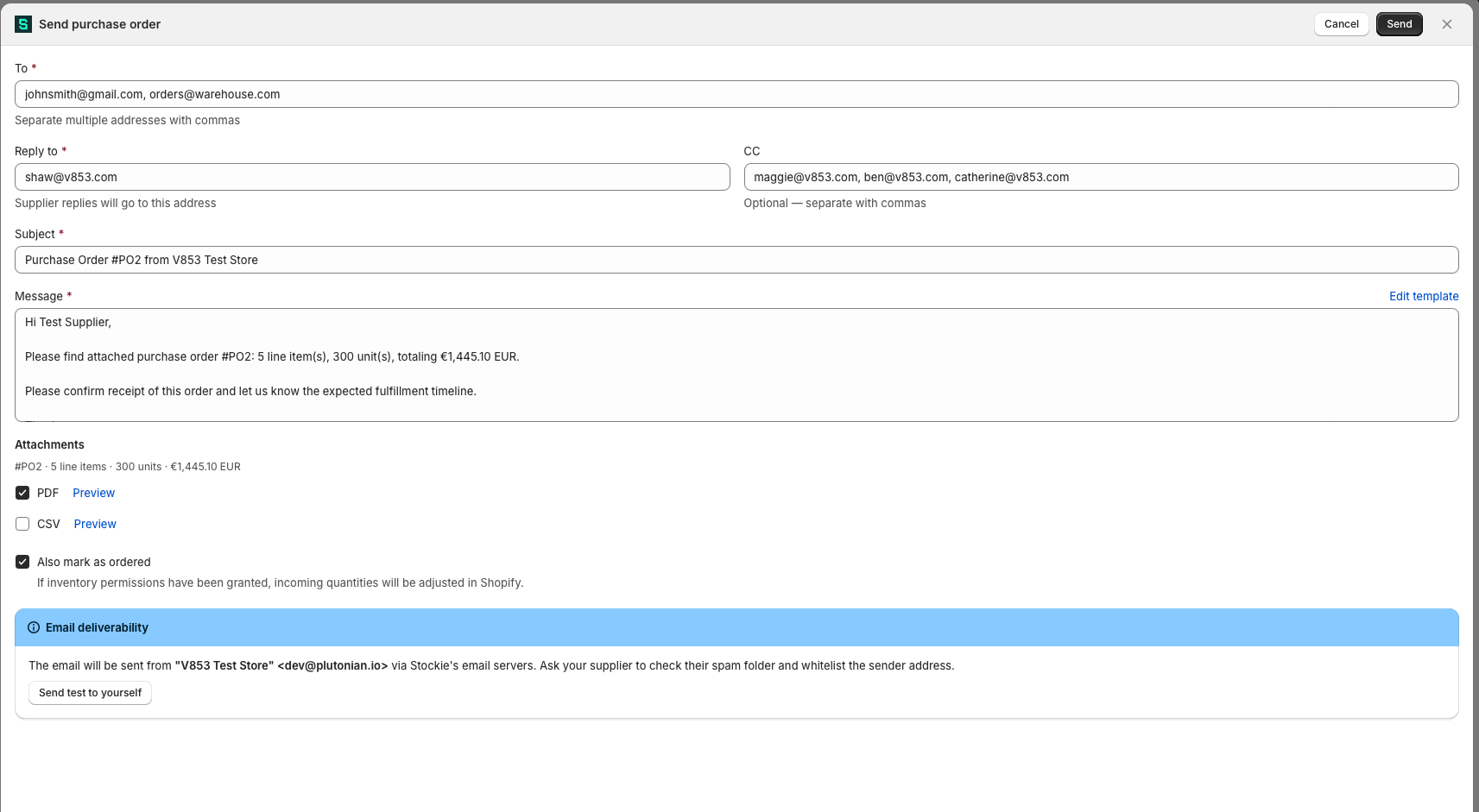
Open the purchase order and choose More actions → Send to supplier. Check the recipients and the message, then send.
Send to supplier is available at every status except Closed.
What gets attached
The order is sent as an attachment, and you choose the format with the PDF and CSV checkboxes. Tick both to send both.
At least one has to be ticked - there is no message-only send.
If your lines use pack sizes
When your store's supplier documents use the QTY / UOM / UNITS layout, the attachments show packs rather than loose units. If your email body uses the {{purchaseOrderLineItems}} placeholder, a pack line in that list reads 2 x Pack of 24 (48 units) - Product name so the count is unambiguous in the message too.
The send window also flags any line whose quantity is not a whole number of packs, naming the product, the units ordered and the pack size, so you can correct a stray quantity before the order goes out.
Sending a draft
If the order is still a Draft, the send window offers Also mark as ordered. Tick it and sending does both jobs at once, which is usually what you want: the supplier gets the order and Stockie stops treating it as a draft.
If marking as ordered fails for any reason, the email is not sent either. You will not end up with a supplier holding an order that Stockie still shows as a draft.
Who it goes to
Recipients come from two places. The supplier record is specific to that supplier. Settings → Purchase orders applies to every supplier.
| Where | Applies to | |
|---|---|---|
| To | Supplier record | That supplier only |
| CC | Supplier record | That supplier only |
| CC on every purchase order | Settings → Purchase orders |
Every supplier |
| Reply-to email | Settings → Purchase orders |
Every supplier |
The To list
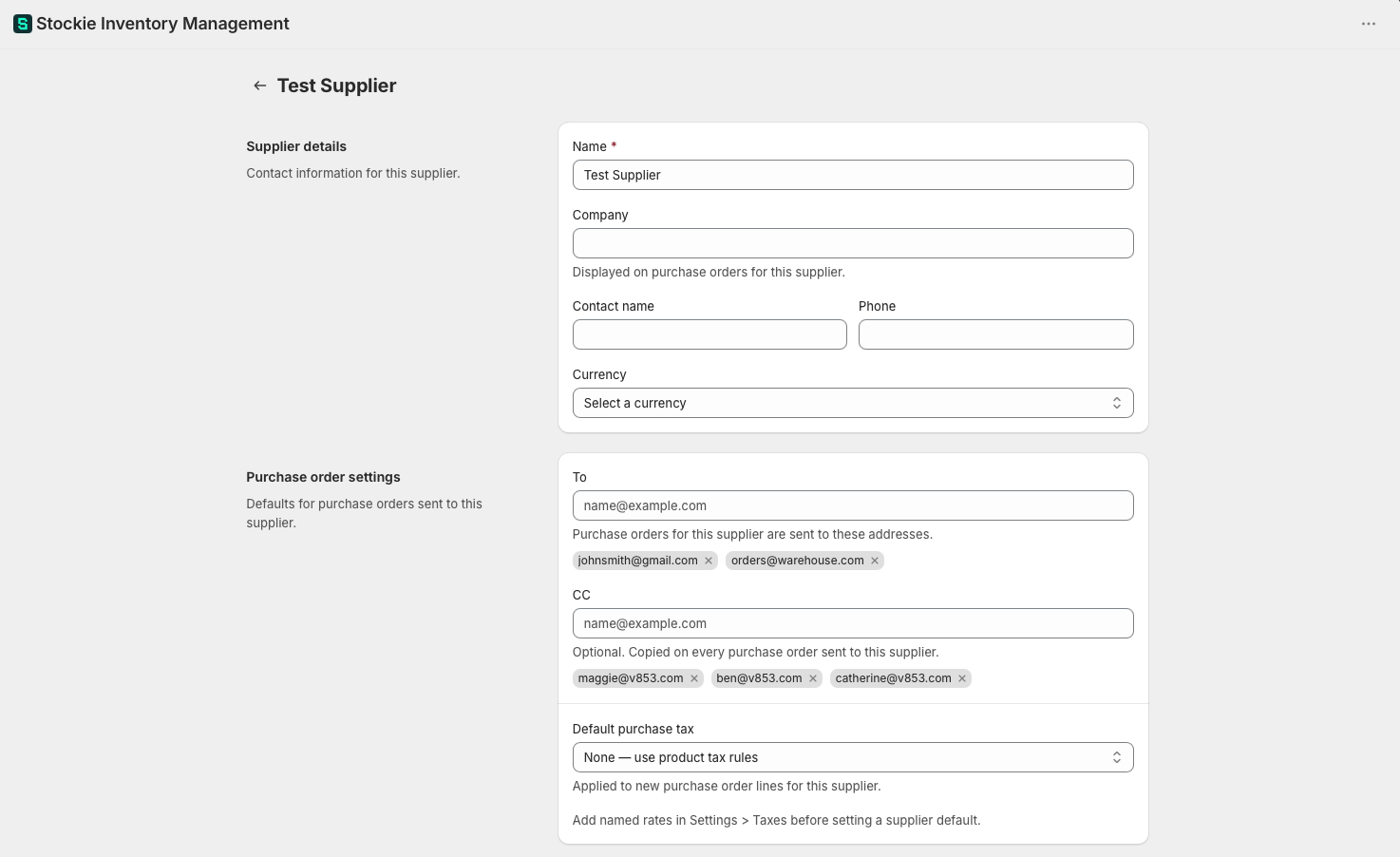
Set per supplier, at Suppliers → [supplier] → Manage , under Purchase order recipients. There is no store-wide To - a purchase order always goes to the supplier you raised it against. You can list up to 20 addresses.
A supplier with no recipients cannot be sent to. The send is refused with At least one recipient email address is required, so add an address either to the supplier record or in the send window itself.
The CC list
Both levels apply, and they add together. An order to a supplier with its own CC list also copies whatever you have set store-wide.
A supplier can carry up to 20 CC addresses. The store-wide list is capped lower, at five, because it applies to every order.
An address that appears in both To and CC is only sent to once - the To entry wins, so nobody receives two copies.
If you have never set the store-wide CC, your reply-to address is copied on every purchase order automatically. That is the behaviour from before the setting existed, and it is why you may be receiving copies you did not ask for. To stop it, open Settings → Purchase orders and save the CC list empty - an empty list means copy nobody, which is different from never having set one.
Replies
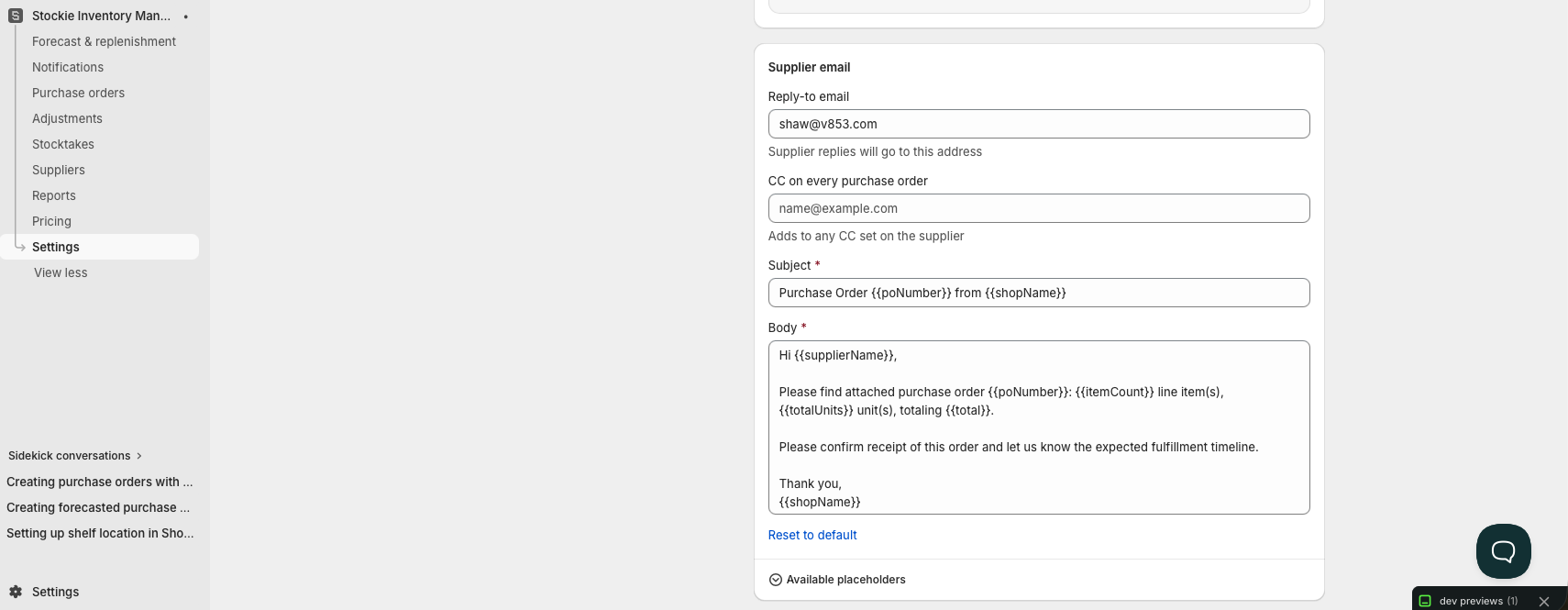
Replies go to your Reply-to email under Settings → Purchase orders . If you have not set one, your store's email address is used.
Changing recipients for one order
The recipients above are defaults. The send window is pre-filled with them and you can edit To and CC there before sending, which changes that order only and leaves your supplier and store settings alone.
Send a test to yourself first
The send window carries an Email deliverability note with a Send test to yourself button. Worth using before the first real send, so you can see exactly what your supplier gets.
The test goes to your store's email address rather than to the supplier, whatever is in the To box. Its subject is prefixed with [TEST] and nobody is copied, so there is no risk of a test reaching your supplier.
Sending the same order twice
If an order has been sent before, the send window says so, with the date and the addresses it went to. If you have changed the order since, it tells you that too.
You then have to tick I understand this will send another email to the supplier before Stockie will send again. This is deliberate - a supplier receiving the same order number twice is a real problem, so the second send is never accidental.
Changing the subject and message
The email subject and body are set under Settings → Purchase orders , and apply to every purchase order you send.
Exporting instead
If you would rather send from your own email client, More actions → Export PDF gives you the purchase order as a file to attach yourself, and Export CSV gives you the line items as data. These are the same documents the email attaches.
Who the email appears to come from
By default purchase orders send from your store's name at a Stockie address, with your reply-to set - so replies reach you, but the sending address is not your own domain. The send window shows you exactly how it will appear before you send.
Because of that, it is worth asking a new supplier to check their spam folder and whitelist the sender address.
Sending from your own domain is possible, but it needs DNS records on your side and configuration on ours. Contact support if you want it set up.