Printing barcode labels from a purchase order
Available on: Pro Plus.
You can produce barcode labels for the items on a purchase order by exporting a file for your label app.
Exporting a file for your label app
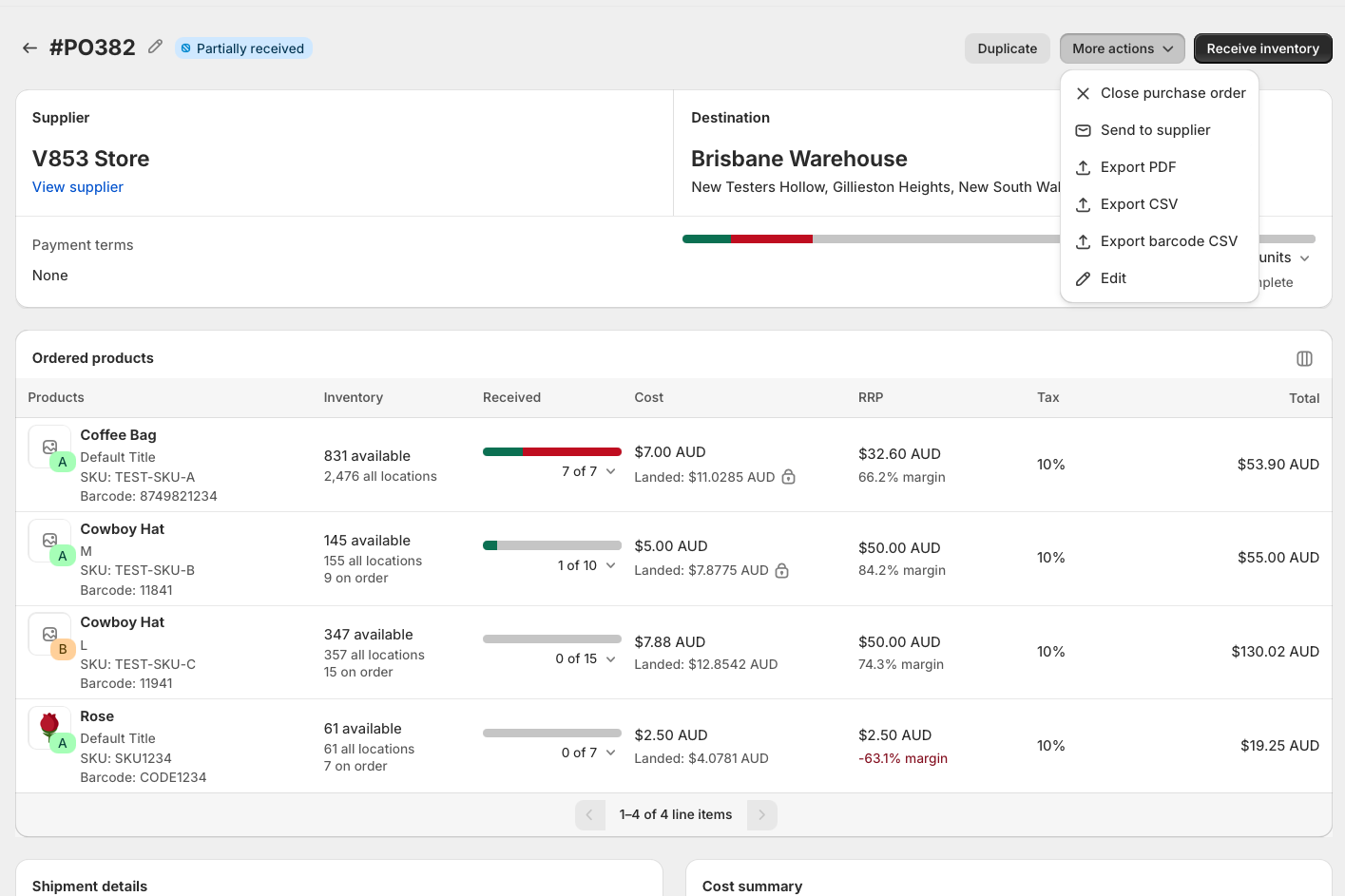
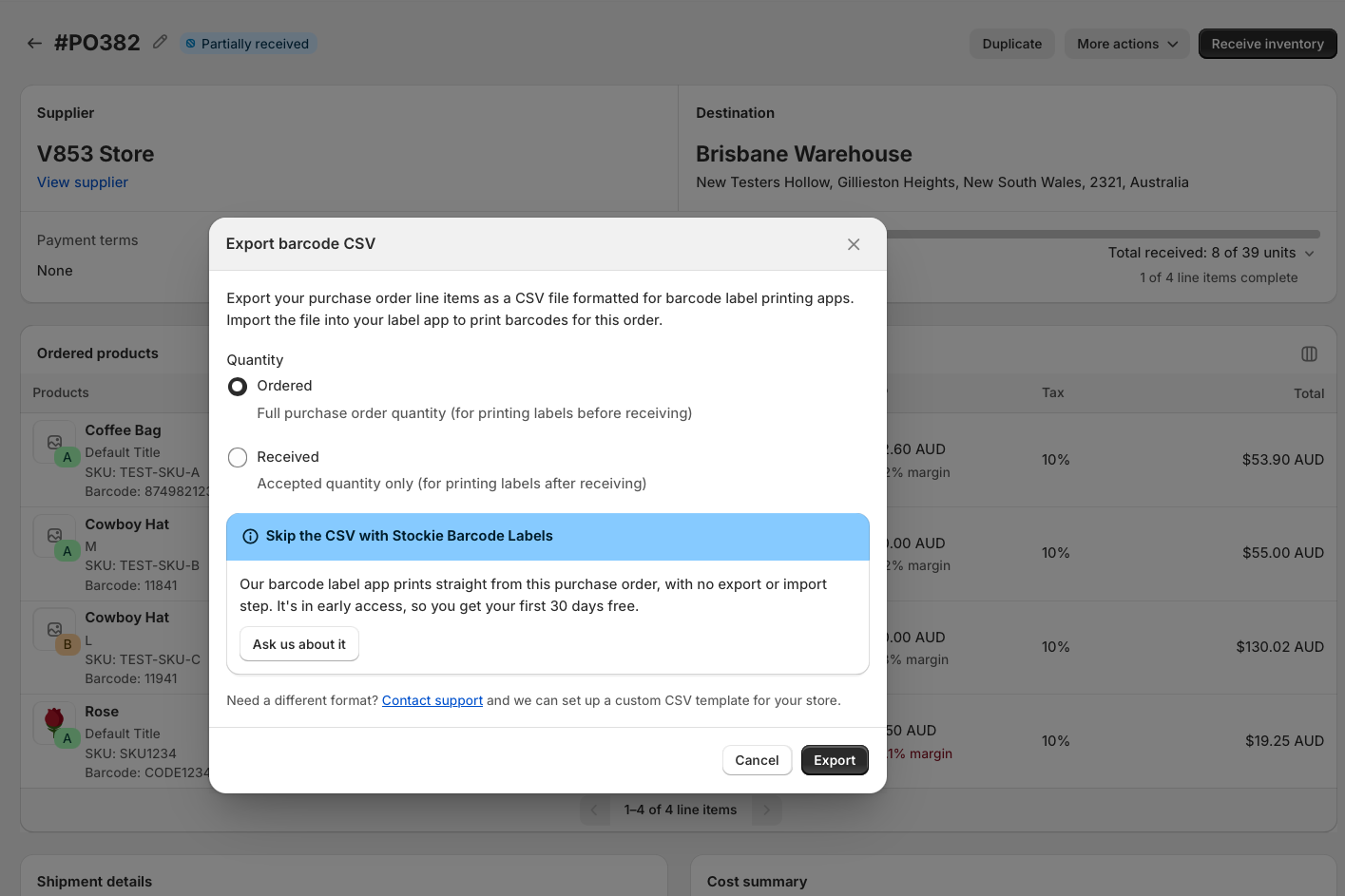
Open the purchase order and choose More actions → Export barcode CSV. You are asked which quantity to use:
- Ordered - the full quantity on the order, for printing labels before the delivery arrives
- Received - the accepted quantity only, for printing after you have received it
Import the file into your label app to print.
Which label apps this works with
The export is formatted for Yanet by default, so if that is what you use it works as it comes.
Every other label app expects its own column layout. Tell us which app you use and we will configure the export to match it - we support customisation for any label app you name.
Products need what the format matches on
Most formats identify a product by its barcode, so a variant without one is left out of the file rather than flagged - which is why a file can come out shorter than the order.
The Yanet format is the exception: it matches on the product handle instead, so a missing barcode does not exclude a row there.
If your file has fewer rows than your purchase order has lines, that is the first thing to check.